
Best Online HTML Editor: Top Picks Compared (2026)

Alisha Anjum
Writing a few lines of HTML shouldn’t require installing a full code editor, setting up a local server, or creating yet another account just to fix one broken tag. Yet that’s exactly what happens when all you need is to format a product description, test a layout, or clean up pasted text.
The friction adds up fast, especially when you’re bouncing between browser tabs looking for something that works without a login wall or a monthly fee attached.
A best online html editor solves that by letting you write, format, and preview HTML directly in your browser, no downloads or sign-ups required. This guide walks through the features that separate a solid editor from a clunky one, compares the top picks for developers, designers, students, writers, and freelancers, and shows you how to match a tool to your project. Tools Repository, a free collection of over 100 browser-based utilities, comes up here too as one option worth knowing about.
Here’s what to look for before you commit to any tool.
Key takeaways
An online html editor lets you write, format, and preview HTML in your browser, with no installs or accounts needed to get started.
Look for live preview sync, clean HTML5 output, and cross-browser support before trusting any editor with real project work.
Free WYSIWYG tools cover most everyday formatting needs, while embeddable frameworks like Froala fit custom app development instead.
Match the tool to your skill level, output needs, and privacy requirements, not just whatever shows up first in a search.
Start with a free, no-login tool for quick jobs, then scale up to a heavier platform only when a project genuinely demands it.
Table of Contents
- What is an online html editor?
- What features make an html editor worth using?
- Which online html editors are best right now?
- How do i choose the right editor for my needs?
- The takeaway
- Frequently asked questions
- Is it safe to paste sensitive code into an online html editor?
- Can i use an online html editor without an internet connection?
- Do online html editors work well on mobile devices?
- What’s the difference between body-only html and full-page html?
- Are free online html editors good enough for professional work?
- How do i clean up messy html copied from word?
What is an online html editor?
An online html editor is a browser-based tool for writing, formatting, and previewing HTML code without installing any software on your device. It runs entirely inside a web browser, whether that’s Chrome, Firefox, Safari, or Edge, and works the same way on a Windows laptop, a Mac, or a Chromebook in a school computer lab. Unlike a desktop IDE, there’s nothing to download, configure, or update, you just open a tab and start typing.
Research on generative AI tools for HTML development has examined how well modern editors and code generators support this workflow, showing that these tools generally fall into two types. WYSIWYG editors, short for what you see is what you get, show your content the way it will actually appear on a live page while you format it visually. Source code editors instead display raw HTML markup with syntax highlighting, built for people comfortable typing tags directly. Many modern tools blend both, letting you toggle between a visual view and the code sitting behind it.
What features make an html editor worth using?
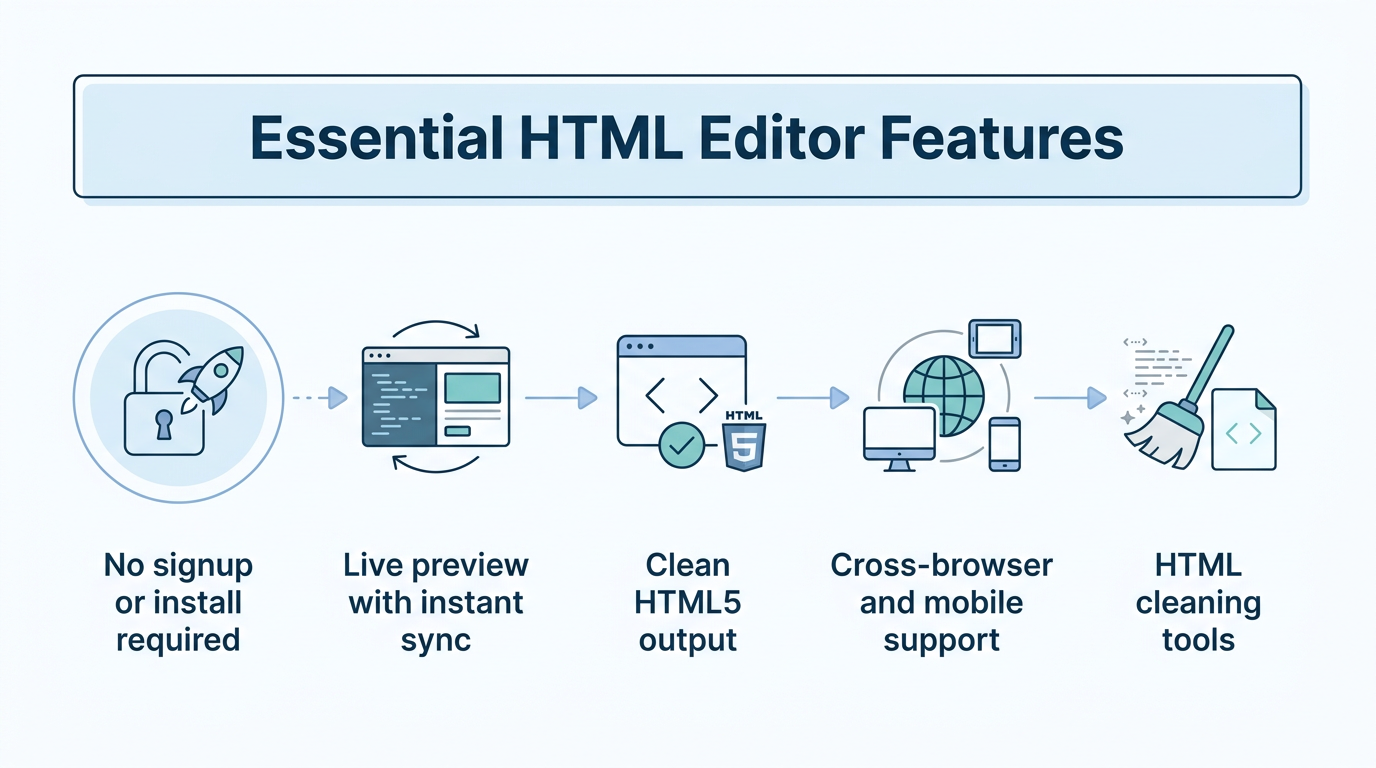
A handful of features separate a genuinely useful online html editor from one you’ll abandon after five minutes. The best tools skip account creation entirely, sync your code and preview instantly, and hand back markup that’s actually valid HTML5 rather than a tangle of broken tags. Cross-browser support matters too, since your content might get viewed in Chrome one minute and Safari the next, on a laptop or a phone. And if you ever paste text from Microsoft Word or Google Docs, cleanup tools stop being a nice extra and become essential.
No signup or install required. The best editors are ready the second you open the page, with no email address, password, or download standing between you and the task in front of you.
Live preview with instant sync. Whether you’re editing the visual view or the raw code, changes should show up in both panels immediately, without a manual refresh or a page reload breaking your flow.
Clean HTML5 output. Editors built on trusted engines like TinyMCE automatically strip broken or unnecessary tags, so the markup you copy is standards-compliant and portable across platforms.
Cross-browser and mobile support. A tool that only behaves properly in one browser causes headaches down the line, so confirm it works consistently across Chrome, Firefox, Safari, Edge, and Opera.
HTML cleaning tools. Content pasted from Word or Google Docs often drags along invisible inline styles and redundant tags, and a good cleaning setting strips that clutter before it reaches your live site.
Handy extras that save time
Beyond core editing, the better tools throw in small utilities that quietly save time. A dummy text generator fills empty layouts with placeholder copy so you can test spacing before real content is ready. A built-in color picker, similar to jsColor, lets you grab a hex code and copy a ready-made CSS snippet in seconds. Find-and-replace tools handle bulk text swaps across a document, which beats manually hunting for every instance of a typo.
Which online html editors are best right now?
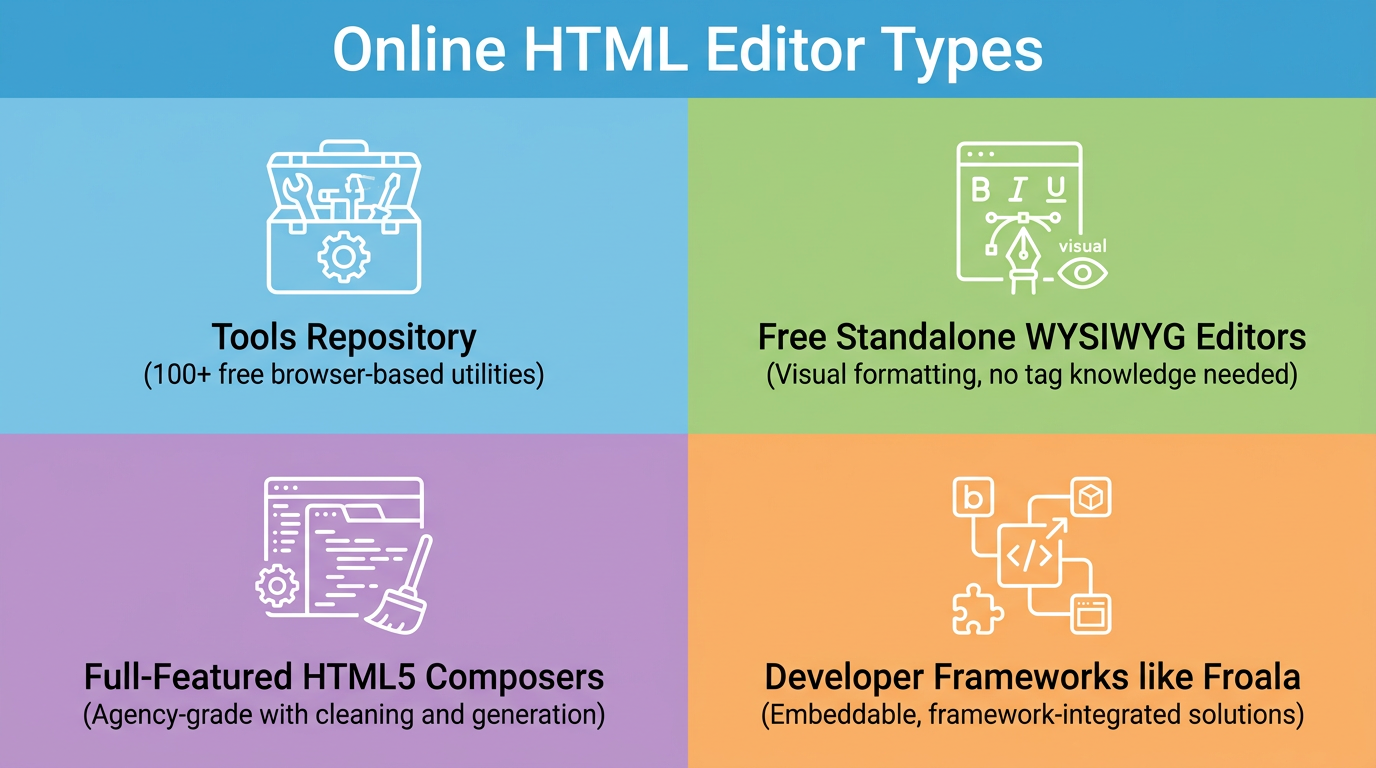
The best online html editor for you depends heavily on whether you’re formatting a blog post or embedding a rich text field inside a custom application. Free, no-login WYSIWYG tools cover most everyday formatting needs, from cleaning up pasted text to grabbing a quick CSS snippet. Full-featured HTML5 composers add cleaning settings and dummy text generators for agencies producing content at scale. Developer-focused frameworks like Froala go further still, plugging directly into React, Django, or WordPress projects that need a branded, embedded editing experience, an approach also explored in open-source projects like an open-source Python web design framework built as a responsive desktop IDE. Here’s how each category breaks down.
Tools repository
Tools Repository takes a different approach by bundling more than 100 free browser-based tools into one place, including formatters for HTML, JSON, and SQL alongside CSS generators and color utilities. Everything runs client-side, meaning nothing you paste into a formatter ever reaches a server, and there’s no login screen standing between you and the task at hand. For a quick HTML cleanup or a one-off CSS snippet, that’s often faster than opening a heavier editor.
It works well as a companion to bigger platforms rather than a replacement for them. Developers already living in VS Code or GitHub, and designers working in Figma, can lean on it for the small, repetitive jobs that don’t justify opening a full application, like formatting a snippet before a code review or grabbing a color value for a mockup.
Free standalone wysiwyg editors
Free standalone WYSIWYG editors are built for people who need HTML output but have zero interest in writing tags by hand. You format text with a familiar toolbar, much like a word processor, then click a source or code view button to reveal the generated markup ready for copy and paste. These tools suit small business owners writing product descriptions, marketers building newsletters, and bloggers formatting a post without calling a developer.
Full-featured html5 content composers
Full-featured HTML5 composers were often built by design agencies that got tired of juggling five separate tools for one job. They generate valid, standards-compliant markup through engines like TinyMCE, and bundle cleaning settings, dummy text generation, and color pickers into a single workspace. Because many only output body content rather than full head and body tags, they fit best when you’re dropping formatted content into an existing CMS template.
Developer-focused frameworks like froala
Developer-focused frameworks such as Froala are built to be embedded inside a product you’re already building, not used as a one-off tool, similar in spirit to component libraries documented in guides like getting started with an embeddable HTML editor for React and jQuery-based applications. Froala supports integration across 15 or more frameworks, including React, Django, WordPress, and CakePHP, backed by a plugin ecosystem covering tables, spell check, and media embeds. Pricing starts with a 30-day free trial, and paid plans run from $899 per year for the Professional tier up to $1,999 per year for Enterprise, with custom Architect pricing available for larger deployments.
How do i choose the right editor for my needs?
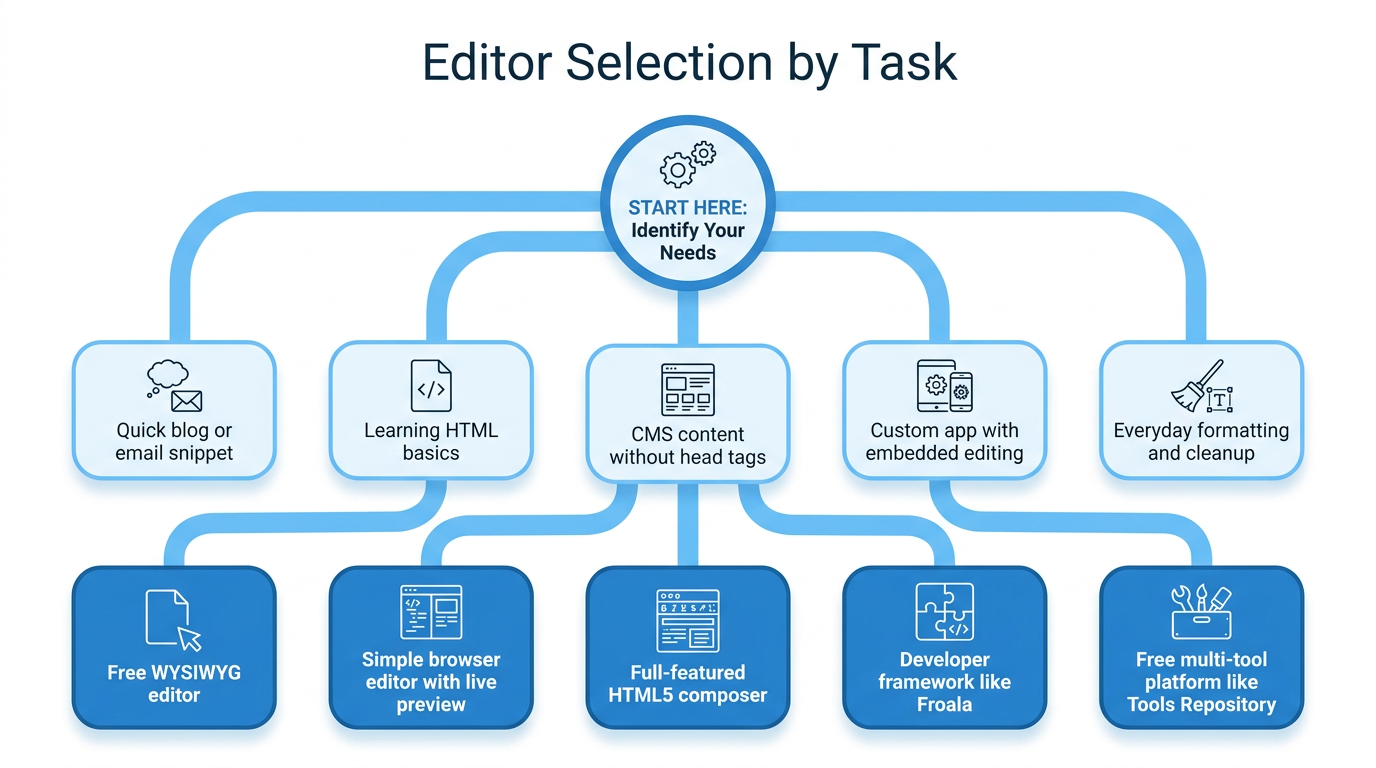
Matching a tool to your project starts with an honest look at your technical comfort level and what the output needs to look like. Non-developers formatting a blog post or product page should stick with a WYSIWYG editor and a source view, while anyone building a custom application needs an embeddable, framework-compatible option instead. Also consider whether you need full-page HTML with head and body tags, or just body content for an existing CMS template.
Budget and privacy matter just as much as features. A free, no-login tool is plenty for occasional formatting and cleanup work, while a paid, developer-focused framework only earns its cost once you’re shipping a product that needs deep customization and dedicated support.
If you handle sensitive client code, prioritize tools that process everything locally in your browser rather than sending it to a server.
| Task | Best editor type |
|---|---|
| Quick blog or email snippet | Free WYSIWYG editor |
| Learning HTML basics | Simple browser editor with live preview |
| CMS content without head or body tags | Full-featured HTML5 composer |
| Custom app needing embedded editing | Developer framework like Froala |
| Everyday formatting and cleanup | Free multi-tool platform like Tools Repository |
The takeaway
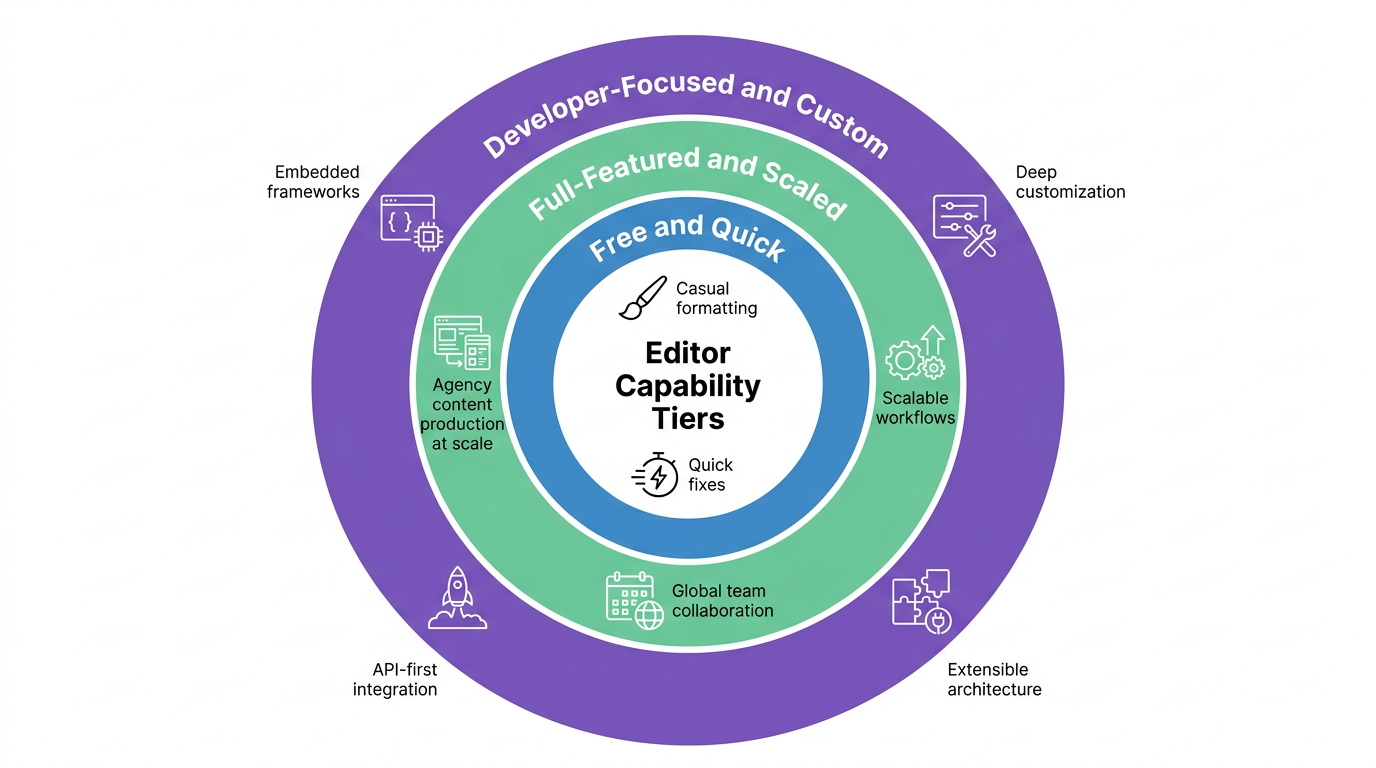
The best online html editor isn’t one single tool, it’s whichever one matches your skill level and the job in front of you. Casual formatting, quick fixes, and student projects call for free, no-login tools that get out of your way. Agencies producing content at scale benefit from full-featured HTML5 composers, while development teams building their own products need embeddable frameworks with real customization options.
If you’re not sure where to start, begin small. Open a free tool like Tools Repository for your next quick formatting task, whether that’s cleaning pasted text or grabbing a CSS color snippet, and scale up to a heavier framework only once your project genuinely demands it. The simplest option that gets the job done is usually the right one.
Frequently asked questions
Online html editors raise a few common questions around privacy, offline use, and output format, especially for anyone new to browser-based tools. Below are quick answers to the questions readers ask most before picking a tool for their next project.
Is it safe to paste sensitive code into an online html editor?
Safety depends on the specific tool you’re using. Some editors process everything client-side in your browser, meaning your code never reaches a server, while others send data off for processing elsewhere. Check a tool’s privacy policy before pasting confidential or proprietary code.
Can i use an online html editor without an internet connection?
Most online editors need an internet connection to load the page and its scripts initially. A few may cache resources locally afterward, but offline use isn’t standard, so don’t count on editing HTML without a signal.
Do online html editors work well on mobile devices?
Top editors use responsive design, so they display and function properly on tablets and phones. That said, typing and editing raw code on a small touchscreen keyboard is still awkward, so mobile use fits quick edits better than long sessions.
What’s the difference between body-only html and full-page html?
Full-page HTML includes the complete document structure, head tags, meta information, and body content, ready to stand alone as a webpage. Body-only output skips that wrapper and is meant for pasting into an existing CMS template or content block.
Are free online html editors good enough for professional work?
Yes, for most everyday formatting, cleanup, and content tasks, free tools handle professional work just fine. Reserve paid, developer-focused frameworks for situations where you’re building a custom application needing deep integration, branded theming, or dedicated support.
How do i clean up messy html copied from word?
Look for an editor with built-in HTML cleaning settings, often tucked behind a gear icon in the toolbar. These let you strip inline styles, redundant tags, and other leftover formatting that Microsoft Word or Google Docs add automatically when you paste content.