
Center Text Instantly: Free Online Tool & How-To Guide

Alisha Anjum

Trying to center text by hand for a README header, an ASCII banner, or a class assignment rarely works on the first try. Counting characters and guessing at spaces wastes time, and the moment your content changes length, the alignment falls apart again.
A center text tool solves this instantly by adding equal padding to both sides of a line until it sits in the middle of a width you set. This guide covers how that padding math works and where developers, designers, students, writers, and freelancers use centered text across code, documents, and terminals. It also covers which habits keep your output clean on every platform. You’ll also see how a free, browser-based tool from Tools Repository handles the job with no sign-up, no uploads, and no waiting around for results.
Once you understand the mechanics, centering any block of text becomes a two-minute task instead of a guessing game. Here’s what you need to know, starting with the basics.
Key takeaways
- Centering text means adding equal padding on both sides so it sits in the middle of a set width, with any odd space going to the right.
- The tool measures each line, subtracts it from your target width, and splits the remainder between the left and right sides.
- Centered text shows up most in README headers, CLI banners, code comments, ASCII art, and formatted reports.
- Clean results depend on choosing a wide enough target width and normalizing tabs and extra spaces beforehand.
- Browser-based tools like the one from Tools Repository process everything locally, so your text never reaches a server.
Table of Contents
- What does it mean to center text?
- How does a center text tool actually work?
- Where can I use centered text in my work?
- What are the best practices and common mistakes to avoid?
- Why use a free, browser-based tool instead of doing it manually?
- The takeaway
- Frequently asked questions
- Can I center multiple lines of text at once?
- What happens if my text is longer than the width I set?
- Can I use characters other than spaces for padding?
- Will centered text look right in any font?
- Do I need to install anything to use a center text tool?
- Is my text stored or uploaded when I use an online centering tool?
- What width should I choose for a README header?
What does it mean to center text?
Centering text means adding equal amounts of padding to the left and right of a line so the actual content sits in the middle of a chosen width. Instead of typing spaces by guesswork, a center text tool calculates the exact gap needed on each side and fills it automatically. This keeps every line visually balanced, whether you’re centering a single title or an entire block of text.
The math behind it is simple subtraction. The tool takes your target width, subtracts the length of the line, and divides what’s left between both sides. When that leftover amount is odd and can’t split evenly, the extra space goes to the right side, which keeps the output consistent and repeatable every time you run it.
How does a center text tool actually work?
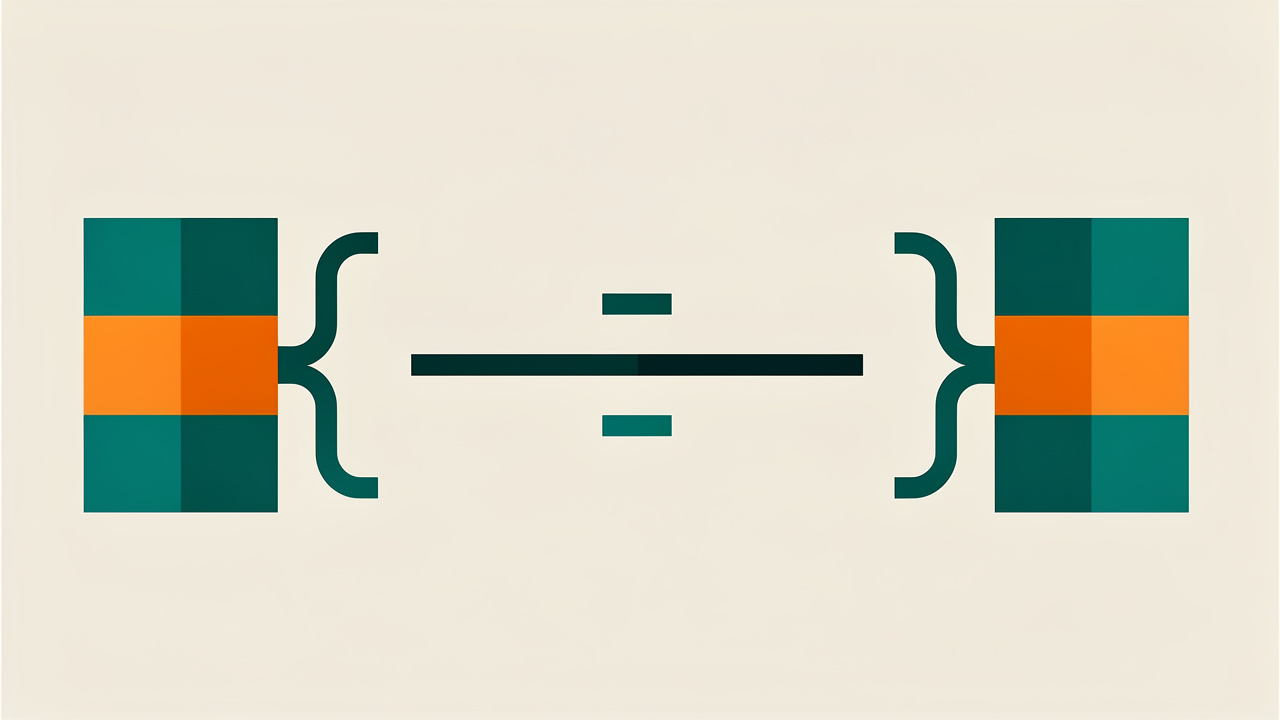
A center text tool follows the same three-step calculation no matter how many lines you paste into it: measuring, subtracting, then splitting the remainder evenly.
- It measures the character length of each line in your input, treating every letter, number, and symbol as one unit of width.
- It subtracts that length from the target width you’ve chosen, which gives the total amount of padding still needed.
- That padding gets divided by two, with one half placed on the left and the other on the right, so the original text appears to float in the middle.
If the padding splits evenly, both sides match exactly; if it doesn’t, the extra single space lands on the right to keep the total width accurate. This entire process repeats independently for every line, which matters because real text blocks rarely have lines of identical length. A short title and a longer subtitle in the same input each get centered on their own, based on the same target width, yet the whole block still reads as aligned rather than jagged.
Nothing about the actual wording changes during this process, since only the surrounding whitespace is added or adjusted. That reliability is what makes centered output predictable enough for automated scripts, documentation templates, and repeated formatting tasks.
Using a center text tool in 3 simple steps
Centering text yourself takes three quick steps, and most tools walk you through them in order.
- Paste your text into the input box, whether it’s one line or an entire block.
- Set a target width yourself, or use auto-detect so the tool reads your longest line.
- Preview the result, adjust the width if it looks off, then copy the finished output.
Where can I use centered text in my work?
Centered text shows up anywhere a flat block of content needs a clear visual focal point instead of a left-aligned wall of words.
- Web developers and front-end engineers reach for it most often when writing README headers on GitHub, formatting command-line interface banners, or adding centered comments that break up long code files.
- UI/UX designers and digital creators use the same approach for quick mockups and wireframes, letting them test how a centered headline or button label will look before committing to a full design file in Figma or similar software.
- Students and academic users rely on it for assignments, lab reports, and presentation slides that call for a centered title without opening a heavier word processor.
- Content writers and copyeditors use centered text for invitations, newsletter headers, and social posts when a platform’s built-in formatting options fall short.
- Freelancers and small business owners lean on it for client-facing documents, quotes, and simple reports that need to look polished without hiring a designer.
- Technical analysts and system administrators also use centered banners in logs and status reports, since fixed-width output has to stay consistent across whatever system eventually displays it.
Quick use-case snapshot
Here’s a quick breakdown of how each audience typically puts centered text to work.
| Audience | Common use case |
|---|---|
| Developers | README headers, CLI banners |
| Designers | Mockups and wireframes |
| Students | Assignments and presentations |
| Writers | Newsletters and invitations |
| Freelancers | Client documents and reports |
What are the best practices and common mistakes to avoid?
Getting clean, professional results from a center text tool comes down to a few habits more than any special setting. The single most important one is picking a target width that’s noticeably bigger than your longest line. Cramped widths leave barely any room for padding, and the result looks pinched instead of centered. If your longest line runs 14 characters, a width somewhere between 20 and 30 characters usually gives a balanced look with enough space on both sides.
It also helps to normalize your spacing before you center anything. Tabs and multiple consecutive spaces render differently across editors, terminals, and operating systems, which throws off alignment even though the math underneath is correct. Converting tabs to single spaces and collapsing repeated spaces into one keeps the output identical no matter where someone opens it later.
Another habit worth building is previewing your result in the same environment where it will actually live. That might be a terminal window, a markdown file, or a printed report. Monospaced and proportional fonts don’t always agree on what counts as centered. Skipping that preview step is the most common reason centered text looks fine in one place and lopsided in another.
Tip: when in doubt, preview your centered text in the exact environment it will be read in. A header that looks perfectly centered in your code editor can look off in a terminal or a rendered markdown file.
Common edge cases to watch for
A few situations trip up most people the first time they center text.
- Lines longer than your target width simply stay as they are, since there’s no extra space left to distribute as padding.
- Mixed blocks with both short and long lines center each line on its own, which is expected behavior rather than a bug.
- Proportional fonts won’t display true visual centering the way monospaced fonts do, even when the character count is technically correct.
Why use a free, browser-based tool instead of doing it manually?
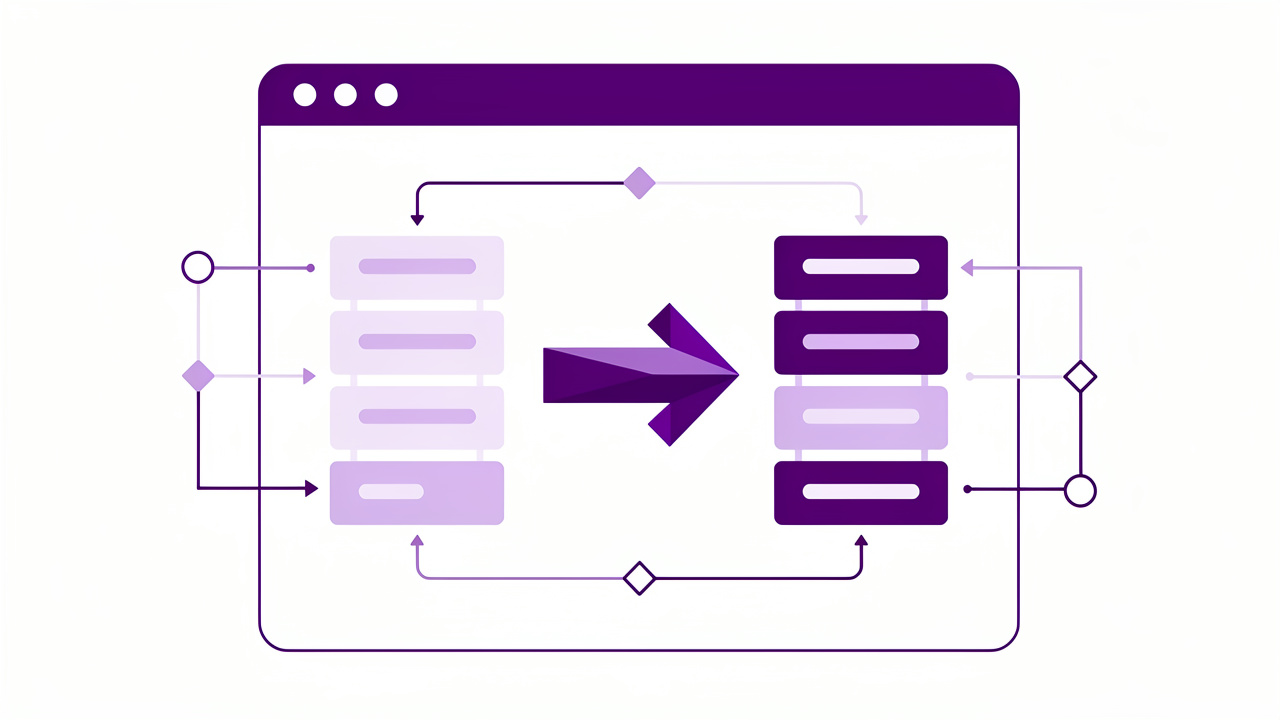
Doing this math by hand works fine for a single short line. It falls apart fast once you’re centering multiple headers, a full ASCII banner, or content you’ll need to reformat repeatedly. A browser-based center text tool runs the entire calculation locally on your device. That means your text never gets uploaded, logged, or stored anywhere, a real advantage when you’re formatting proprietary code comments or unreleased documentation.
Tools Repository includes a center text tool as part of a wider collection of more than 100 free utilities. That lineup covers formatters, converters, and other everyday text tools, all without sign-ups or subscriptions. Having it sit alongside tools you already reach for, like a JSON formatter or a word counter, keeps small formatting tasks from pulling you away into a separate paid app.
The takeaway
Centering text is nothing more than equal padding on both sides of a line, but getting that padding right by hand invites mistakes and eats time you don’t have. A center text tool handles the subtraction and splitting instantly, applies it consistently across every line in your input, and leaves your actual wording untouched.
Whether you’re writing a README header, building ASCII art, formatting a client report, or centering a title for class, a free and private tool gets you there in seconds. Give the center text tool on Tools Repository a try next time you need balanced, professional-looking output without opening a design program or fighting with manual spacing again.
Frequently asked questions
Centering text raises a few recurring questions, especially around multi-line input, font behavior, and what happens when lines don’t fit the width you’ve chosen. Here are straightforward answers to the ones that come up most, whether you’re formatting a README, building ASCII art, or preparing a document for class or a client.
Can I center multiple lines of text at once?
Yes, each line in your input gets measured and centered independently against the same target width you set. This keeps multi-line blocks, like a title followed by a subtitle, aligned and balanced even when the lines have different lengths.
What happens if my text is longer than the width I set?
The tool leaves that line exactly as it is, since there’s no leftover space available to use as padding. Widen your target width or shorten the line itself if you want it centered along with the rest.
Can I use characters other than spaces for padding?
Yes, many center text tools let you swap the default space character for dashes, asterisks, or other symbols. This works well for decorative headers, ASCII art borders, and terminal banners that need a bit more visual flair.
Will centered text look right in any font?
Character-based centering looks most accurate in monospaced fonts, where every character takes up identical width. In proportional fonts, where letters like m and i differ in width, the same text may not appear visually centered even though the calculation is correct.
Do I need to install anything to use a center text tool?
No installation or account is required for browser-based tools. A tool like the one from Tools Repository runs directly in your browser and gives you centered output the moment you paste your text in.
Is my text stored or uploaded when I use an online centering tool?
No, client-side tools process everything locally inside your browser, so your input is never uploaded, logged, or saved on a server. This matters if you’re formatting sensitive code, private documents, or unpublished content.
What width should I choose for a README header?
Widths between 50 and 80 characters generally produce clean, readable results for README files and general documentation. You can also use auto-detect so the tool measures your longest line and suggests a width for you.