
CSS Tools: The Complete Guide to Faster Styling

Alisha Anjum
Every front-end project runs into the same snag. You end up converting colors by hand, guessing at selector specificity, or nudging spacing values until something finally looks right. That kind of manual tweaking eats hours that could go toward actual design work instead.
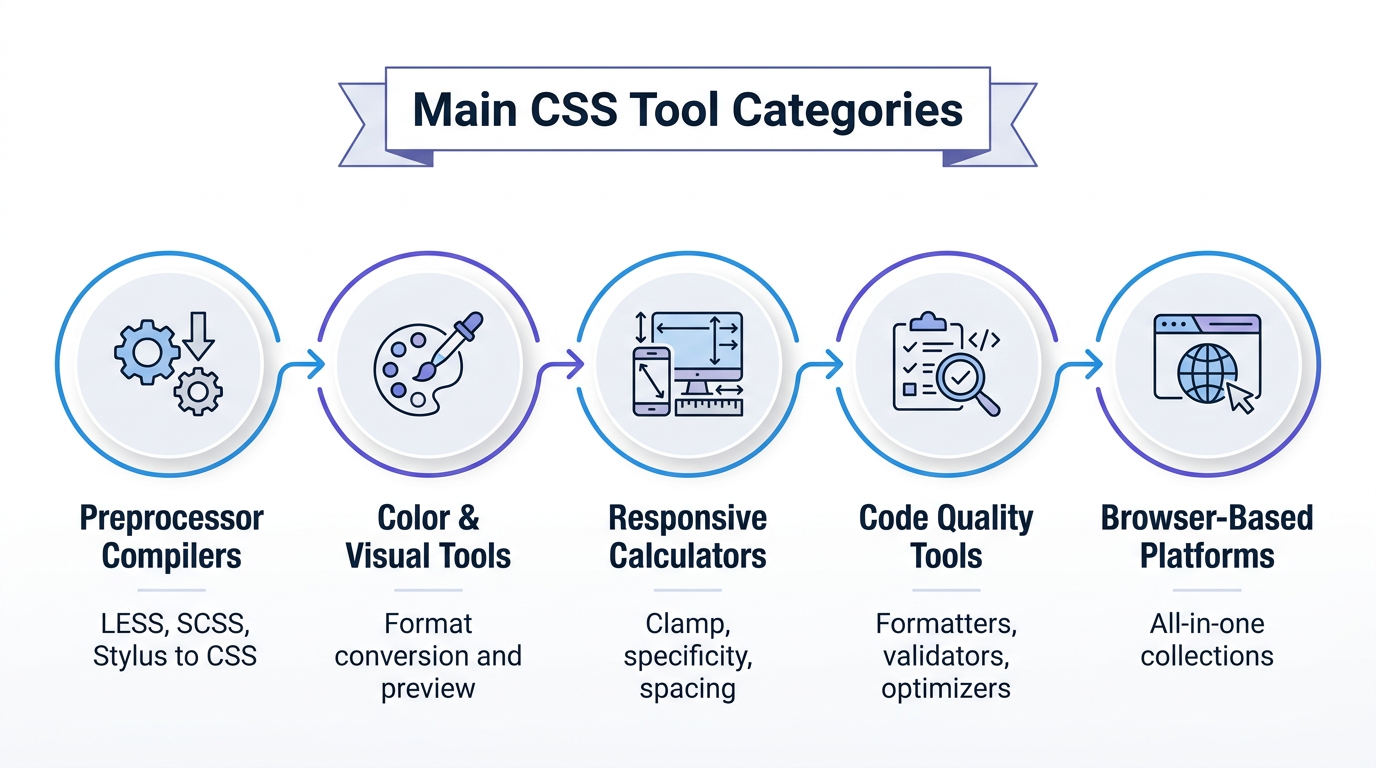
CSS tools exist to close that gap. They are browser-based utilities that write, convert, validate, and visualize stylesheets, turning tasks that once took an hour into a two-minute job. This guide walks through the main categories of CSS tools available today, from preprocessor compilers and color converters to responsive calculators and code optimizers.
Along the way, you’ll see how to pick the right tool for a given task, whether you’re compiling Sass, checking selector specificity, or cleaning up a bloated stylesheet before launch. We’ll also look at how one free platform, Tools Repository, brings many of these utilities together in a single place. By the end, you’ll know which tool fits which job, and why browser-based, no-login options have become the practical choice for developers, designers, students, and freelancers.
Key takeaways
- CSS tools automate color conversion, unit calculation, and code generation, saving hours of manual work.
- Categories range from preprocessor compilers to color pickers, responsive calculators, and code optimizers.
- Browser-based tools need no installation, account, or software setup to start using.
- The right tool depends on your project stage, from early prototyping to final production cleanup.
- Privacy-first, no-login platforms are becoming the standard choice for everyday CSS work.
Table of Contents
- What are CSS tools and why do developers need them?
- Which CSS preprocessor and converter tools should I use?
- What are the best CSS color and visual tools?
- How do CSS calculators simplify responsive design and specificity?
- Which CSS tools improve code quality and performance?
- How does Tools Repository make CSS work easier?
- Final thoughts
- Frequently asked questions
- Are online CSS tools safe to use with proprietary code?
- Do I need to install anything to use CSS generators and converters?
- Can CSS tools replace a preprocessor like Sass entirely?
- What’s the difference between a CSS formatter and a CSS optimizer?
- How do I find unused CSS in a large project?
- Are free CSS tools good enough for professional projects?
What are CSS tools and why do developers need them?
CSS tools are online utilities and browser apps that write, convert, validate, or visualize cascading stylesheets so developers spend less time on repetitive tasks. Instead of manually converting a hex code to RGB or counting selector weight by hand, a tool does the math instantly and shows a live preview. This matters because CSS now covers grid generator, logical properties, and fluid typography that are genuinely hard to calculate in your head. A good tool turns those calculations into a quick, visual process anyone can follow.
Front-end engineers use these tools daily to debug layout and speed up production work, while UI/UX designers rely on generators to turn a design idea into working code without writing it from scratch. Students benefit just as much, since visual tools make abstract concepts like specificity or positioning easier to grasp. Freelancers and content writers who touch CSS occasionally get professional results without years of hands-on experience.
Which CSS preprocessor and converter tools should I use?
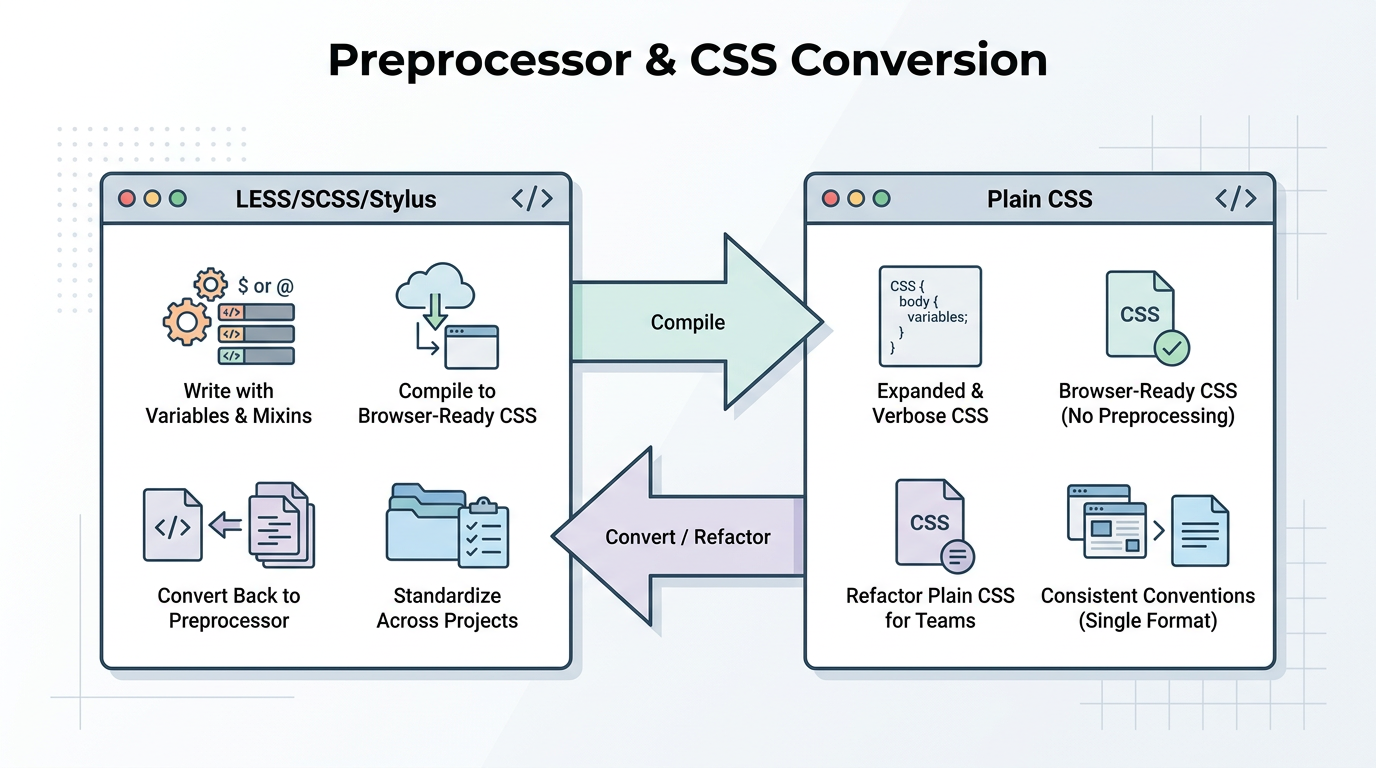
CSS preprocessor tools handle the translation between languages like LESS, SCSS, and Stylus and the plain CSS that browsers actually read, though newer approaches like a CSS preprocessor that lets you write HTML and CSS in a single file are also emerging as alternatives to the traditional model. Preprocessors add variables, nesting, and mixins that make large stylesheets easier to manage, but none of that syntax works until it’s compiled into standard CSS. That’s where a CSS tools compiler comes in, turning preprocessor code into browser-ready output in seconds, without setting up a local build system. Teams that standardize on one language also need the reverse process, converting existing plain CSS into LESS, SCSS, or Stylus format so it fits their workflow. This two-way conversion proves useful when a freelancer inherits a legacy codebase written in plain CSS but the rest of the team works in Sass, or when a company wants every stylesheet to follow the same conventions going forward. Picking the right converter saves the manual rewriting that would otherwise eat up a full afternoon.
Compiling preprocessor code to CSS
A LESS to CSS compiler, SCSS to CSS compiler, or Stylus to CSS compiler converts preprocessor syntax into clean, browser-ready code in one step. Developers write with variables, nesting, and mixins, then ship only plain CSS to production. Because the compiler runs online, there’s no need to install Node.js or set up a build pipeline just for a quick style change.
Converting CSS back into preprocessor formats
CSS to LESS, CSS to SCSS, and CSS to Stylus converters do the opposite job, turning existing plain CSS into preprocessor syntax. This helps when refactoring an old stylesheet that needs variables and nesting added for easier maintenance. It also helps teams standardize on one preprocessor across a shared codebase, so every developer follows the same conventions instead of mixing formats inconsistently.
What are the best CSS color and visual tools?
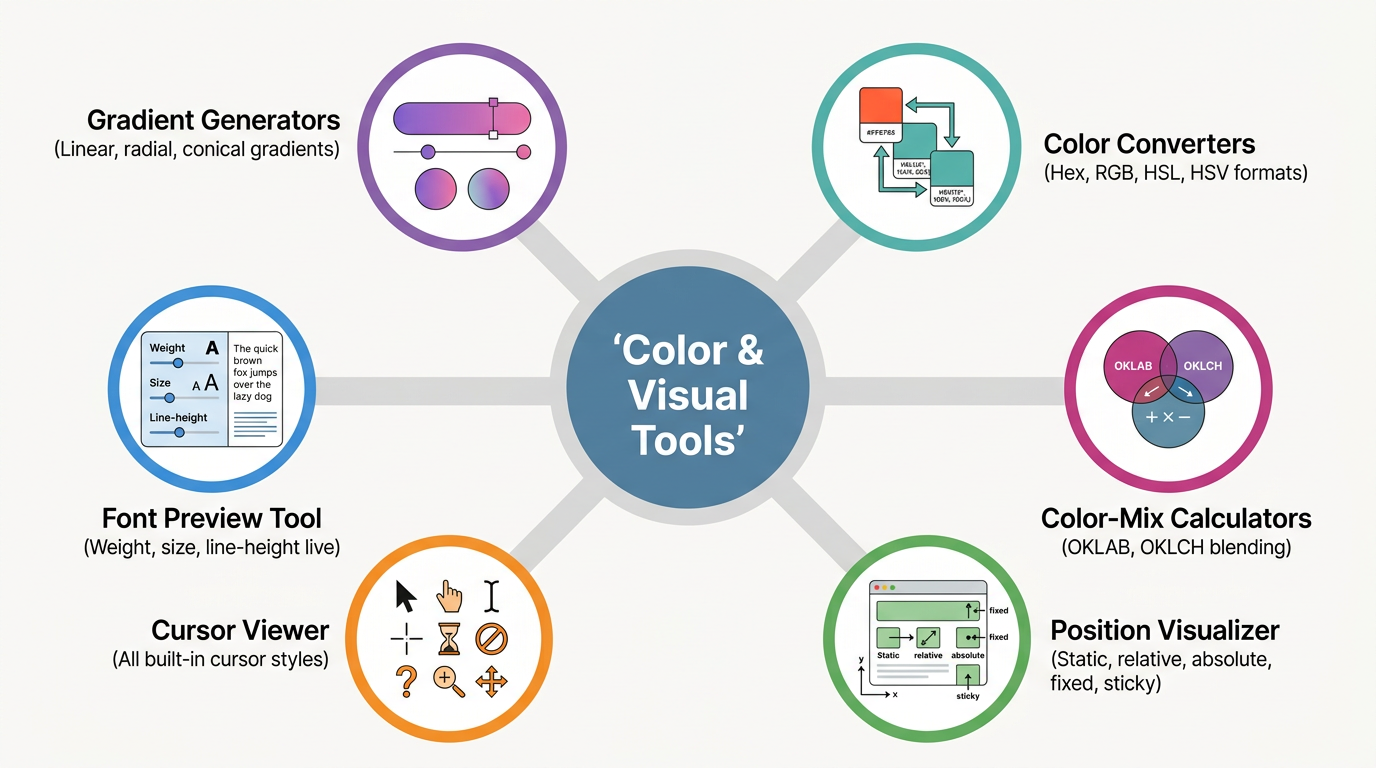
Color and visual CSS tools cover everything from format conversion to on-screen previews that remove guesswork from design decisions. A color converter switches a value between Hex, RGB, HSL, and HSV formats, since different contexts call for different formats: hex for quick web colors, RGB for programmatic calculations, HSL for intuitive adjustments. Beyond straight conversion, many of these tools generate matching color schemes such as complementary or analogous palettes, so a single starting color turns into a consistent set instantly. Visual tools solve a different problem: showing exactly how a property behaves before it goes into production, an idea taken further by visual design tools built around designing together with an AI agent directly in the browser and codebase. A position visualizer maps out static, relative, absolute, fixed, and sticky positioning along with z-index stacking, while a font preview tool lets you compare typefaces side by side and adjust weight and letter-spacing in real time. A cursor viewer rounds things out by displaying every available cursor style with copyable code, so choosing the right interaction cue takes seconds instead of a search through documentation.
Color converters and color-mix() calculators
Color converters handle straightforward format switching, but the color-mix() function needs its own calculator to blend two colors within a chosen color space. Modern calculators support spaces like OKLAB and OKLCH alongside traditional HSL, and these newer, perceptually uniform spaces produce smoother, more natural blends than mixing in plain RGB. Typing in two colors and a blend percentage instantly returns the resulting shade and ready-to-use code.
Position, cursor, and font preview tools
A position visualizer clears up one of CSS’s most confusing topics by showing static, relative, absolute, fixed, and sticky values side by side, including how z-index controls stacking order. Cursor viewers display every built-in cursor option with one-click code copying, removing the guesswork from choosing the right pointer style. Font preview tools let you test size, weight, line-height, and letter-spacing changes live, without refreshing a browser tab repeatedly.
How do CSS calculators simplify responsive design and specificity?
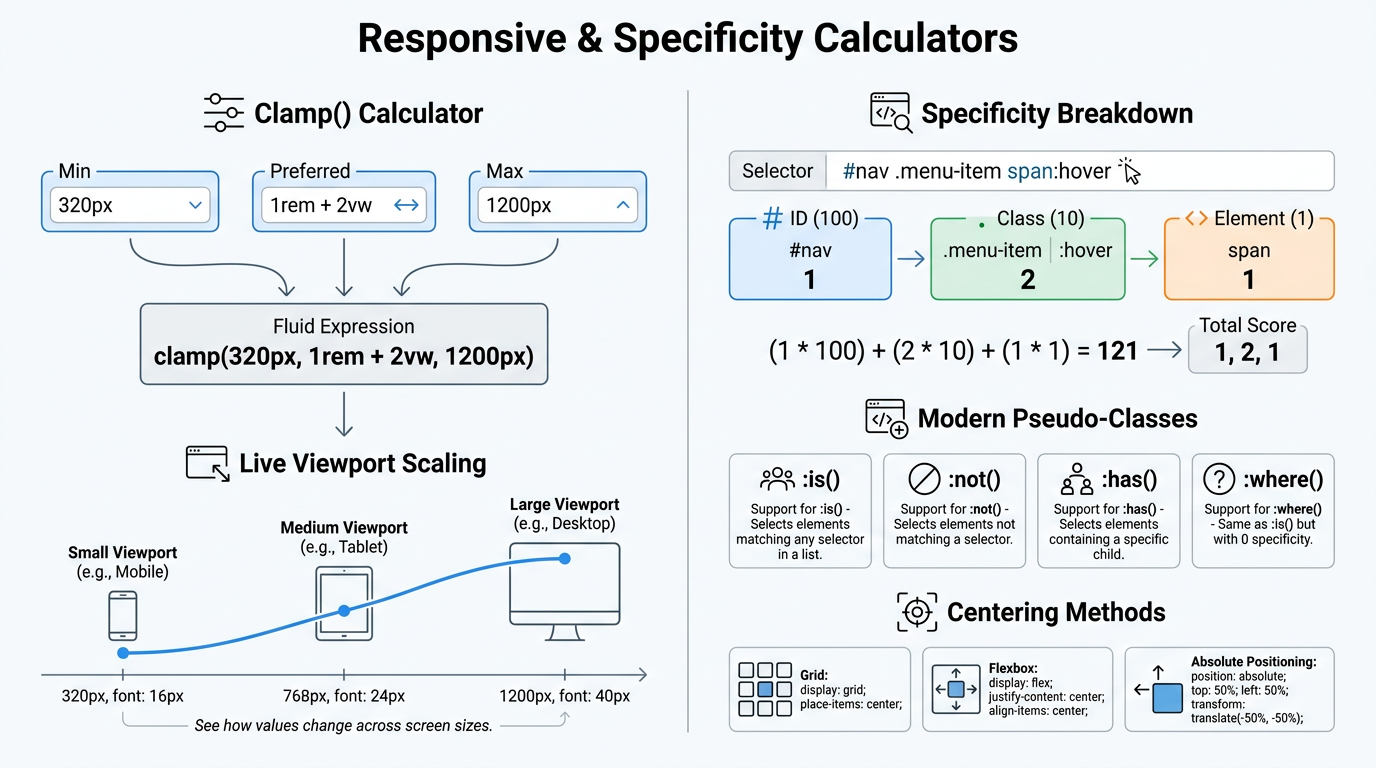
Responsive sizing and selector specificity rank among the most common sources of CSS frustration, and CSS tools built as calculators remove much of the guesswork involved. A clamp() calculator takes a minimum, preferred, and maximum value and generates the matching expression, letting font sizes and spacing scale smoothly across screen widths without writing a single media query. That single function often replaces five or six breakpoint rules that would otherwise need separate testing. Specificity confusion causes a different headache, where a style rule refuses to apply because another selector outranks it. A specificity calculator breaks any selector into its ID, class, and element counts, showing exactly which rule wins, including newer selectors like :is(), :not(), :has(), and :where() that carry their own quirks. Together, these calculators turn two of CSS’s trickiest concepts into something you check in seconds rather than debug for an hour.
Clamp() and lengths calculators
A clamp calculator takes a minimum, a preferred value, and a maximum, then builds the exact expression needed for fluid type or spacing. Live previews show how the value scales as the viewport changes, removing the guesswork before you commit code. A lengths viewer pairs well with this, comparing px, em, rem, and viewport units side by side so you see how each behaves in context.
Specificity calculator and centering guide
A specificity calculator scores any selector by its ID, class, and element counts, then shows which rule the browser applies when two selectors conflict, including modern pseudo-classes like :is(), :not(), and :has(). A centering guide tackles CSS’s other perennial headache, walking through Grid, Flexbox, and absolute positioning methods with live code generators for each, so you grab the right snippet instead of guessing which approach fits.
Which CSS tools improve code quality and performance?
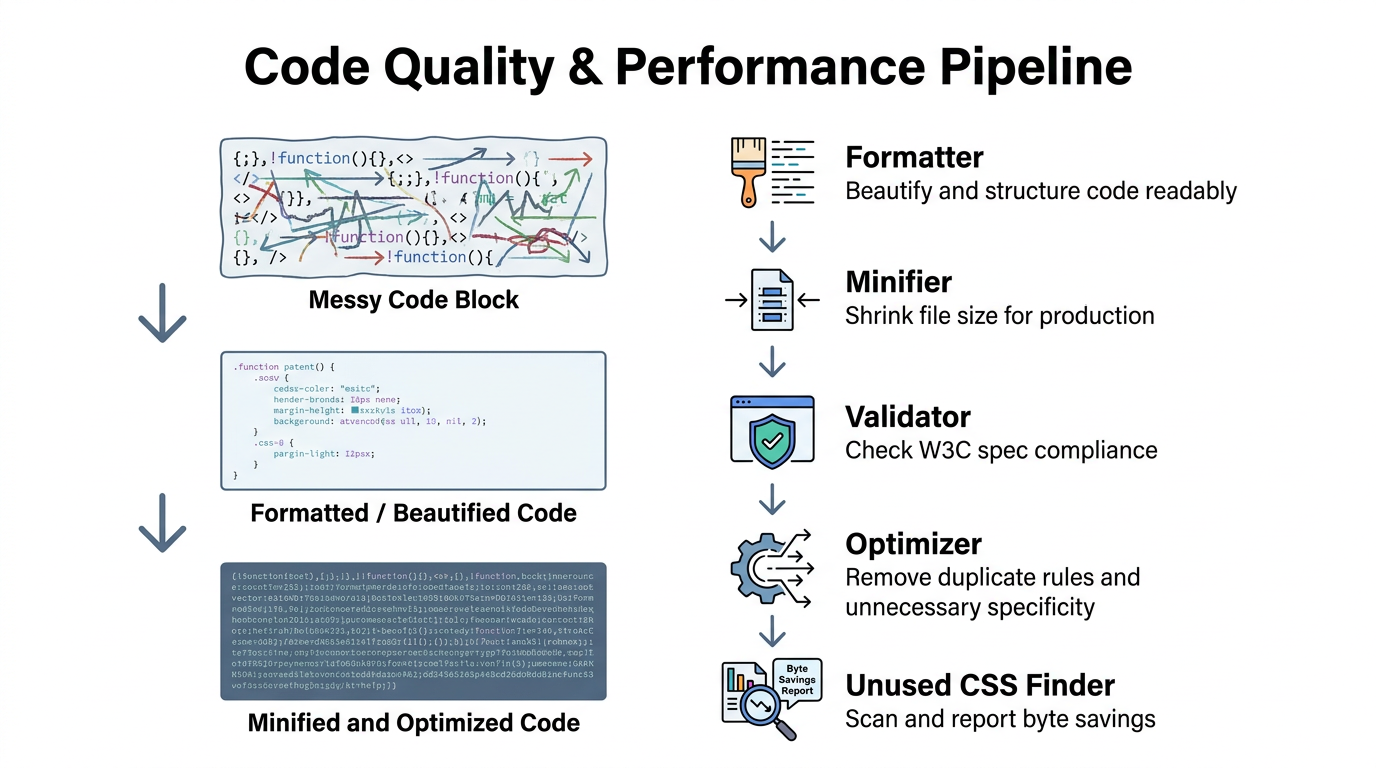
Code quality CSS tools include formatters, validators, and optimizers that keep production stylesheets lean and error-free, and some developers now reach for an instant atomic CSS engine to generate minimal, utility-based styles from the start rather than optimizing bloated code after the fact. A formatter handles two jobs: beautifying messy code for easier reading and CSS minifier to shrink file size. Readable code speeds up debugging, while HTML minifier and comments to cut bandwidth and load time. An optimizer goes further, spotting duplicate rules and unnecessary specificity that plain minification leaves untouched.
Validators check a stylesheet against W3C specifications, JS minifier before they cause a rendering bug that takes hours to trace. An unused CSS finder scans HTML, CSS, and JavaScript files together, flagging selectors that no longer match anything on the page, then reporting the exact byte savings from removing them.
How does Tools Repository make CSS work easier?
Tools Repository brings many of the CSS tools covered in this guide, plus more than 100 other utilities, into one browser-based platform that works without an account. Instead of hunting across a dozen single-purpose sites for a color converter here and a gradient generator there, you get generators, calculators, and web layout helpers alongside text formatters and data converters in one clean interface. Every tool runs directly in the browser and box shadow generator as you type, which matters for anyone working under a deadline. Because nothing requires installation or sign-up, a student testing clamp values and a freelancer building a client site can both get an answer in seconds. The platform’s privacy-first design keeps code and design data on the visitor’s device rather than sending it to a server for storage or tracking.
Why free and privacy-first tools matter for developers
This platform carries no subscriptions, no pro tier, and no hidden fees, a rare promise in a market full of freemium upsells. That model suits freelancers, students, and small teams who need results fast without budgeting for another monthly bill. Staying free permanently also means a student learning CSS today can rely on the same tool years later, without a paywall showing up mid-project.
One place instead of many scattered sites
Consolidating dozens of tools into a single interface cuts down on the tab-switching, cookie banners, and pop-up ads that come with bouncing between separate single-purpose sites. Everything on the platform runs instantly in the browser, with border radius generator, so a color check and a gradient generator sit one click apart instead of two different domains. That convenience adds up over a full workday.
Final thoughts
CSS tools now cover nearly every stage of building a website, from preprocessor compilers and color converters to responsive calculators, specificity checkers, and code optimizers that keep production stylesheets lean. Picking the right one depends less on finding the single “best” option and more on matching the tool to the task in front of you, whether that’s compiling Sass, checking a clamp value, or hunting down unused selectors before launch.
If you’re looking for a starting point that covers most of these needs without sign-ups or software installs, Tools Repository offers a free, privacy-first collection built for exactly this kind of everyday CSS work. Try a generator or calculator next time a styling task threatens to eat your afternoon, and see how much faster the process feels.
A good rule of thumb for any front-end workflow: if a task involves converting, calculating, or checking a value by hand, there’s probably a browser tool that does it faster and more accurately.
Frequently asked questions
Are online CSS tools safe to use with proprietary code?
Browser-based tools that process input locally, without sending it to a server, keep proprietary code private since nothing leaves the device. Before pasting client work into any tool, check whether it clearly states that it doesn’t store or transmit submitted data.
Do I need to install anything to use CSS generators and converters?
Most modern CSS generators and converters run entirely in the browser, with no downloads, plugins, or command-line setup required. This means the same tool works identically across a laptop, a tablet, or a shared office computer without any local installation.
Can CSS tools replace a preprocessor like Sass entirely?
Not quite. Compilers convert Sass or LESS code into standard CSS, but they don’t replace the authoring workflow of writing variables and mixins. Some browser tools bridge part of that gap, adding similar features without a full build step.
What’s the difference between a CSS formatter and a CSS optimizer?
A formatter focuses on readability, indenting messy code or minifying it for production, without changing what the code does. An optimizer goes a step further, removing redundant rules and unused declarations to shrink file size beyond what minification alone achieves.
How do I find unused CSS in a large project?
An unused CSS finder scans your HTML, CSS, and JavaScript files together, flagging any selector that no longer matches an element on the page. Most tools also generate a byte-savings report, which helps prioritize which unused rules to clean up first.
Are free CSS tools good enough for professional projects?
Yes, many free browser-based tools now match paid software in speed and feature depth, especially for everyday tasks like color conversion or gradient generation. Tools Repository is one example, offering a permanently free hub of utilities built for professional-grade workflows.