How to Convert SVG to PNG: Quick Step-by-Step Guide

Alisha Anjum
You’ve spent hours perfecting a logo or icon in SVG format, and it looks flawless at every size. Then you try to upload it to Instagram, attach it to an email, or drop it into an older piece of software, and nothing happens. This mismatch between a format’s strengths and where you actually need to use it is the core reason so many people search for how to convert svg to png. The good news is that the fix takes only a minute once you understand what’s happening.
This guide walks through what makes SVG and PNG different, the situations where converting from one to the other actually matters, and a simple step-by-step method you can use right in your browser. We’ll also cover batch conversion for icon sets and answer the questions that come up most often. By the end, you’ll know exactly which format fits your project and how to switch between them without losing quality or risking your files.
Key takeaways
- SVG is a vector, code-based format that scales infinitely, while PNG is a fixed-resolution pixel format built for universal compatibility.
- Converting to PNG is often necessary for social media, email attachments, older software, and crisp UI icons.
- Browser-based converters let you upload, adjust scale, and download a PNG in seconds, without installing anything.
- Choosing 1x, 2x, or 3x scale controls sharpness on standard and high-density screens.
- Privacy-focused, no-upload tools matter most when your SVG files contain proprietary logos or client work.
Table of Contents
- What’s the difference between SVG and PNG?
- Why would I need to convert SVG to PNG?
- How do I convert SVG to PNG step by step?
- How do I convert several SVG files at once?
- Wrapping up
- Frequently asked questions
- Will converting SVG to PNG reduce my image quality?
- Can I convert hundreds of icons at once without limits?
- How do I keep my SVG’s exact original size when converting?
- Can I export a PNG at 300 DPI for print?
- Can I combine multiple SVGs into one PNG image?
- Is it safe to convert sensitive or proprietary SVG files online?
What’s the difference between SVG and PNG?
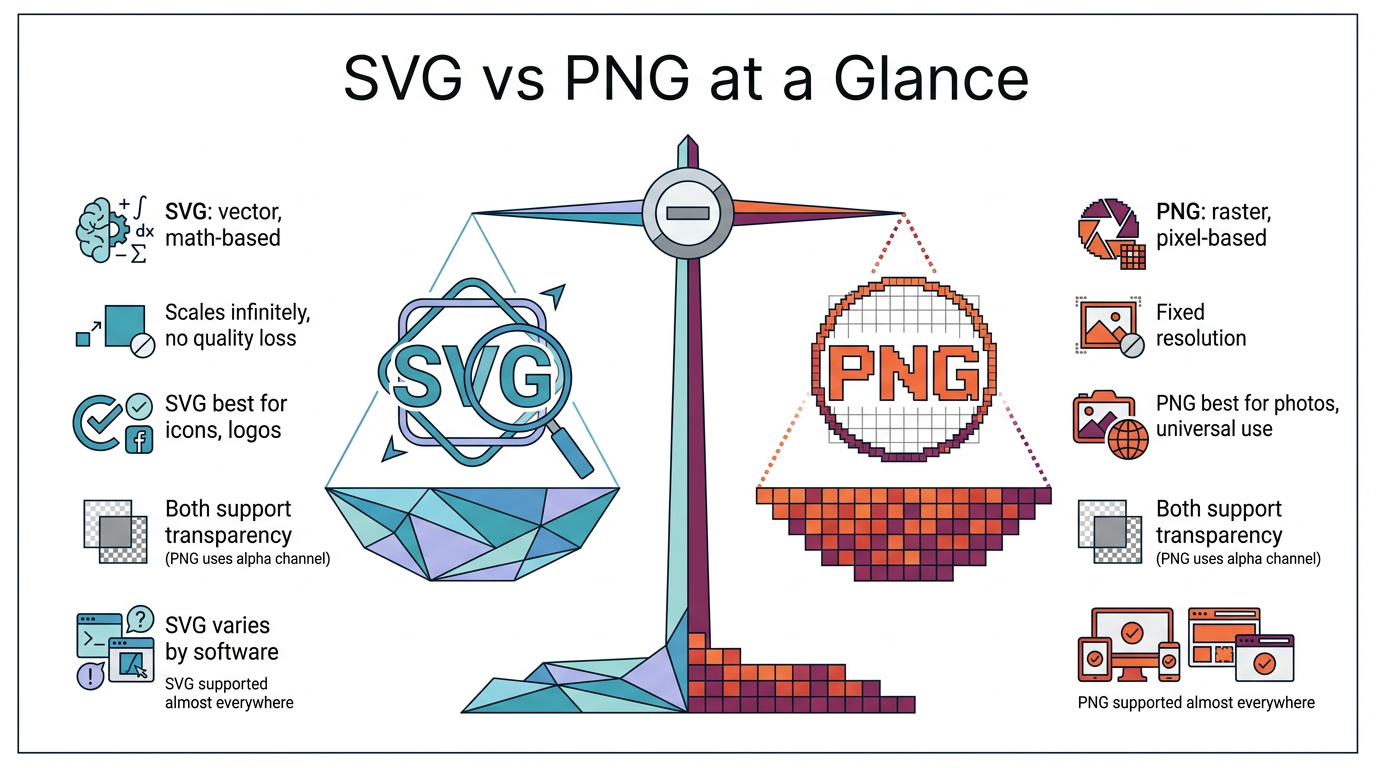
SVG is a vector image format built from mathematical code, while PNG is a raster format made of a fixed grid of pixels, and that single distinction explains almost everything else about how they behave. SVG, short for Scalable Vector Graphics, describes shapes using coordinates, curves, and drawing instructions written in XML, a text-based markup language. Because it’s math rather than a pixel map, an SVG can be stretched to the size of a billboard or shrunk to a favicon without turning blurry or blocky. PNG, or Portable Network Graphics, stores an exact grid of colored pixels instead, which means it has a set resolution baked in at the moment it’s created. This makes PNG the safer bet for photos, complex artwork, or anywhere you need guaranteed support, since practically every browser, app, and device on the planet can open one, while SVG rendering still varies a bit across older software and email clients.
SVG vs. PNG at a glance
| Feature | SVG | PNG |
|---|---|---|
| Image type | Vector (math-based) | Raster (pixel-based) |
| Scaling | Infinite, no quality loss | Fixed resolution |
| Transparency | Yes | Yes, via alpha channel |
| Best for | Icons, logos, illustrations | Photos, complex graphics, universal use |
| Browser and software support | Modern browsers and vector tools | Supported almost everywhere |
Why would I need to convert SVG to PNG?
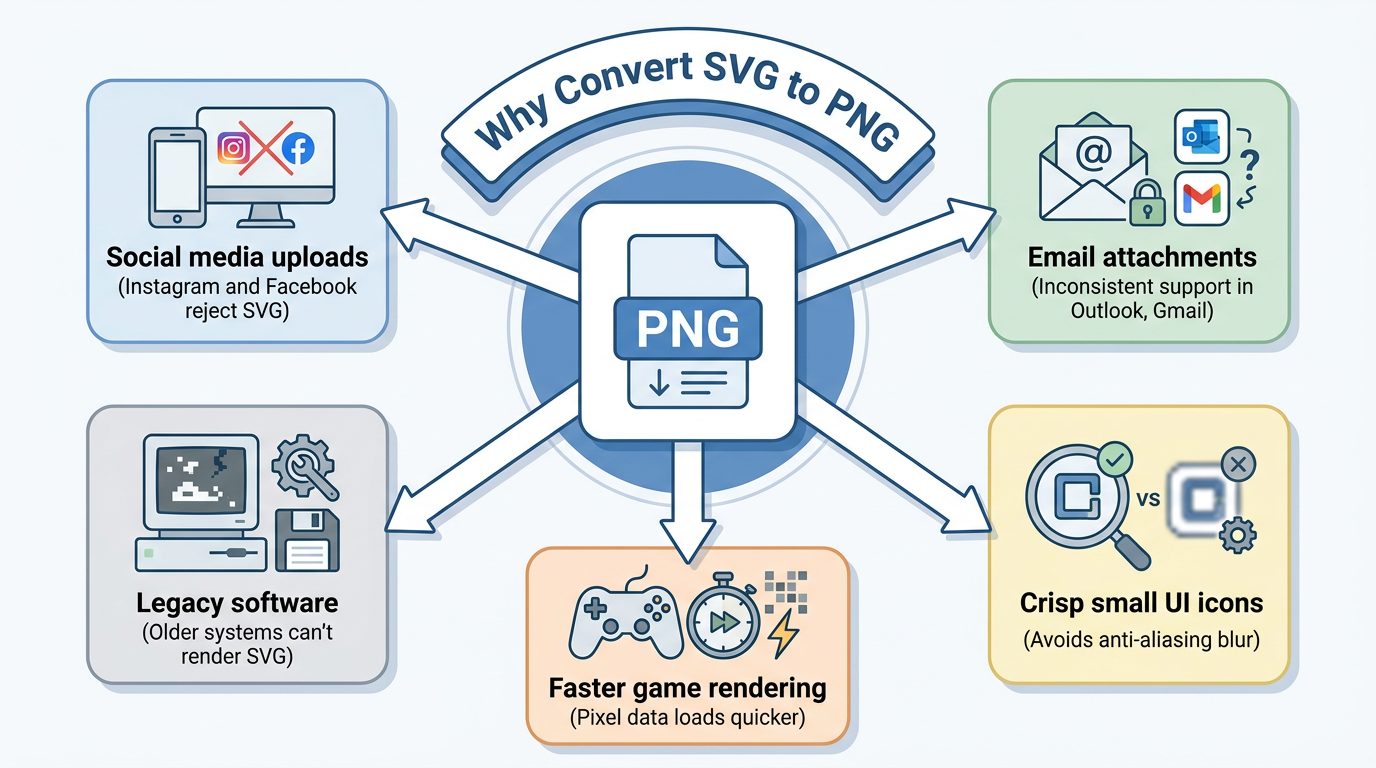
You’ll usually need to convert SVG to PNG when a platform, app, or workflow can’t reliably handle vector files and demands a fixed-pixel image instead. Most social media sites, including Instagram and Facebook, simply reject direct SVG uploads, so PNG becomes the only practical way to share that logo or graphic. Email is another common trip-up, since support for SVG across inboxes like Outlook and Gmail is inconsistent at best, meaning your carefully designed image might just show up as a broken icon. Legacy software and older internal systems often can’t render SVG at all, and PNG sidesteps that problem completely since it’s been a standard for decades.
There are technical reasons too:
- Small UI icons can look slightly blurry as SVG, because vector edges crossing pixel boundaries create unwanted anti-aliasing, while a PNG locks every pixel exactly where you want it for a crisp result.
- In performance-sensitive work like game development, rendering pixel data is far faster than the full rasterization pipeline that SVG requires each time it’s drawn, so studios often convert icons to PNG ahead of time.
- A highly detailed SVG with many paths can, somewhat counterintuitively, end up larger in file size than an equivalent PNG, so it’s worth testing both when you’re optimizing an image-heavy project.
When should I pick PNG over SVG?
PNG becomes the better choice, not just a fallback, whenever you need guaranteed, predictable results across every device and viewer. Since PNG pixels are locked in place, custom fonts, gradients, and blur effects display identically everywhere, whereas an SVG can render slightly differently depending on the browser or app interpreting its code. If you’re at all unsure whether your destination platform supports SVG, choosing PNG removes that risk entirely. And for fine detail work like thin lines or pixel-perfect icon sets, having every pixel explicitly defined often gives you tighter control than relying on a vector renderer to interpret the shape on the fly.
How do I convert SVG to PNG step by step?
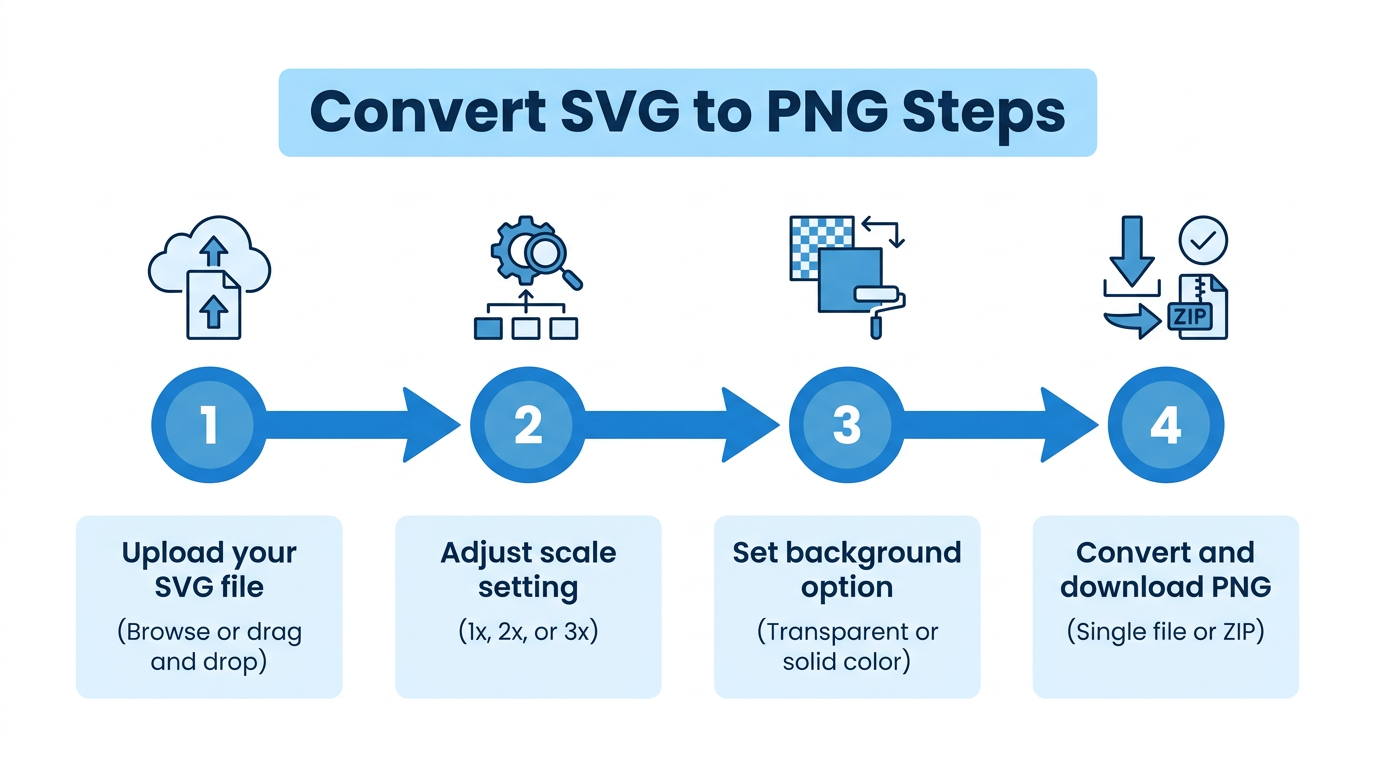
Converting SVG to PNG online generally follows four simple stages: upload your file, adjust a few settings, convert, and download. The whole process usually takes under a minute for a single graphic. Tools Repository offers a free, browser-based SVG to PNG converter that fits this exact workflow, requiring no account and no software install, which makes it a solid pick for a quick one-off conversion or a recurring task. Because the conversion happens locally in your browser rather than on a remote server, your original artwork stays private the entire time. Whether you’re using a dedicated converter like this, a full design suite, or a command-line utility such as rsvg-convert, the underlying logic is the same, so once you learn it, you can apply it anywhere.
Step 1: Upload your SVG file
Getting started just means selecting your file, either by clicking a button to browse your device or by dragging the SVG directly into the browser window. Many tools also let you queue up several files at once if you’re working with more than one graphic, which saves you from repeating the process one file at a time.
Step 2: Adjust scale and background settings
Before converting, most tools let you fine-tune two things that shape the final result:
- Scale multiplier, such as 1x, 2x, or 3x, controls how large the output PNG’s pixel dimensions become relative to the SVG’s original view box.
- Background setting determines whether the image keeps a transparent background, ideal for logos and overlays, or adds a solid color like white if your use case calls for a filled canvas instead.
Step 3: Convert and download your PNG
Once your settings look right, clicking convert rasterizes the vector paths into an actual pixel grid, turning the code-based SVG into a standard image file. For a single graphic, you’ll get a direct download, while batch jobs typically bundle everything into one ZIP archive for convenience.
Always hang onto your original SVG file, since its scalability means you can generate a fresh PNG at any resolution later without ever touching the source artwork again.
How do I convert several SVG files at once?
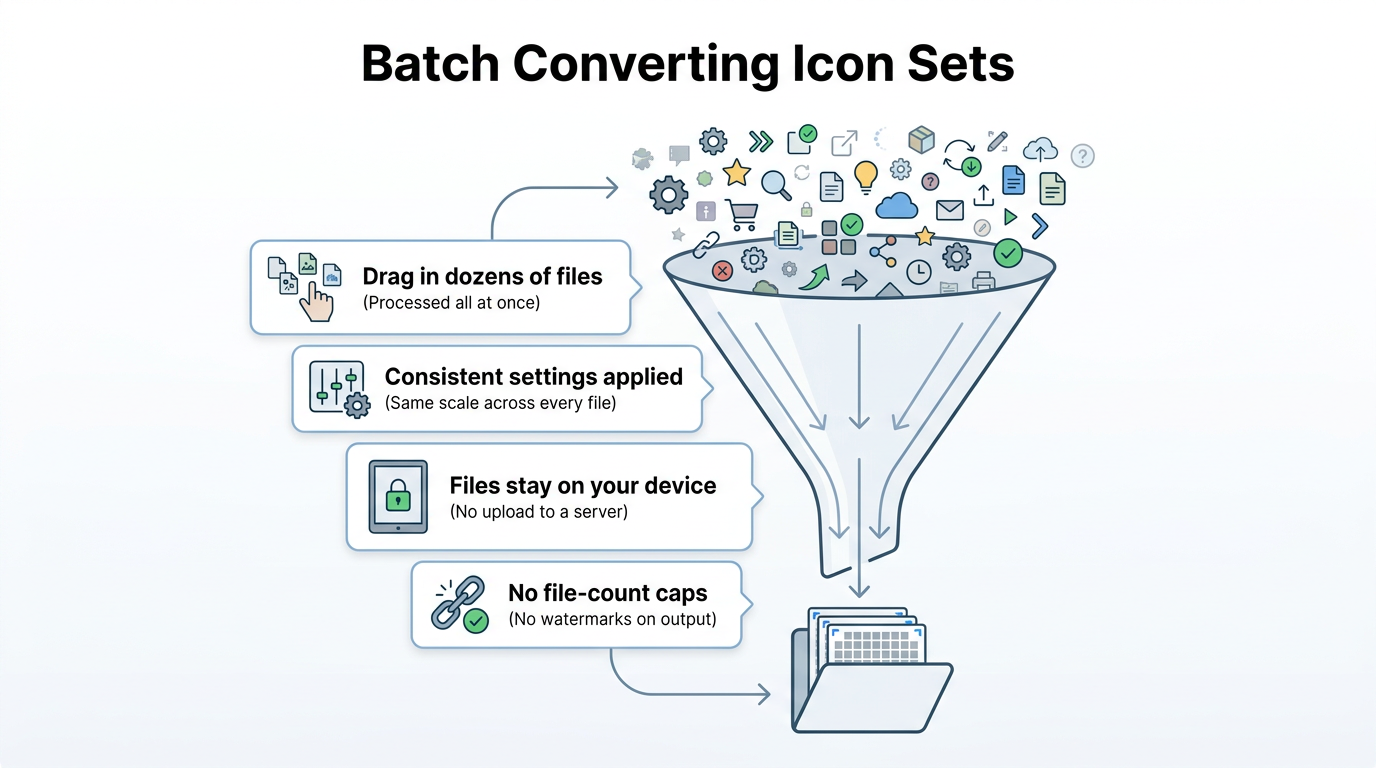
Batch conversion lets you turn an entire folder of SVG icons or graphics into PNG format in one pass instead of repeating the process file by file. This matters a lot for developers building an icon library or designers exporting dozens of assets for a client handoff, since manually converting each one wastes real time, though developers scripting this process might instead reach for a Node.js package like convert-svg-to-png to automate the job. Beyond the speed gain, browser-based batch tools carry a meaningful privacy advantage, because files are processed directly on your device and never travel to an outside server, which matters if your icon set includes unreleased branding or client-confidential designs.
Why a browser-based tool works well for batch jobs
A browser-based approach handles batch jobs well because it applies the same settings consistently across every file while keeping everything local to your machine. You can drag in dozens, sometimes hundreds, of SVG files at once, and reputable free tools rarely impose file-count caps or slap watermarks on your output. Since nothing gets uploaded, there’s no server queue slowing you down and no risk of your assets sitting on someone else’s storage. Tools Repository fits into this picture as part of a broader collection of over 100 free utilities, so once you’ve converted your icon set, the same no-login, browser-based approach is available for other everyday formatting and conversion needs too.
Wrapping up
Choosing between SVG and PNG really comes down to what the image needs to do next. SVG is your best friend for scalable graphics like logos and icons that need to stay sharp at every size, while PNG remains the format that just about every platform, inbox, and app can open without a fuss.
Whenever you convert, hang onto your original SVG so you can regenerate a PNG at a different resolution down the road, and lean on a free, privacy-conscious tool that keeps your files on your own device throughout the process.
Frequently asked questions
Will converting SVG to PNG reduce my image quality?
Converting doesn’t reduce quality outright, but it does lock your image into a fixed resolution instead of infinite scalability. As long as you pick an appropriate scale for your intended use, the PNG looks sharp, though enlarging it significantly afterward will cause blurriness, unlike the original SVG.
Can I convert hundreds of icons at once without limits?
Yes, many free browser-based tools place no cap on how many files you can convert in a single batch. Larger batches simply take a little longer to process since more pixel data needs to be generated and packaged.
How do I keep my SVG’s exact original size when converting?
Leave the scale setting at 1x during conversion. This produces a PNG where one pixel matches one unit from the original SVG’s view box, preserving the exact original dimensions.
Can I export a PNG at 300 DPI for print?
Most browser-based converters work with scale factors like 1x, 2x, or 3x rather than custom DPI values. If you need precise DPI control for print work, a dedicated vector design application will give you more direct options.
Can I combine multiple SVGs into one PNG image?
Some full-featured editors let you arrange several SVG files together on a single canvas before exporting the whole composition as one PNG. This is especially handy for building spritesheets or a preview image showing an entire icon set.
Is it safe to convert sensitive or proprietary SVG files online?
It’s safest to choose a tool that processes files entirely client-side, meaning inside your browser rather than on a remote server. The platform follows this privacy-first, browser-based model, so proprietary designs never leave your device during conversion.