
JSON Tools Guide: Format, Validate, Convert & More

Alisha Anjum

Staring at a wall of unformatted JSON data is one of the most common headaches in modern web development. A single API response can cram hundreds of characters onto one line, with no spacing, no structure, and no obvious way to spot the one misplaced bracket. This is exactly the kind of problem JSON tools exist to solve.
JSON tools are browser-based utilities that format, validate, minify, convert, and visualize JSON data in seconds, all without installing software or writing custom code. They take JavaScript Object Notation, the lightweight format used to move data between apps, servers, and configuration files, and turn it into something readable right away. Tools Repository, a free collection of browser-based utilities, builds several tools for exactly this kind of everyday task.
This guide covers the main types of JSON tools, what each one actually does, and how to choose the right option for formatting, validating, minifying, converting, or exploring your data. Keep reading to find the tool that fits your next project.
Key takeaways
- JSON tools format, validate, minify, and convert data instantly, right in your browser, with no software installs required.
- Browser-based tools keep your data private because nothing gets uploaded to an external server during processing.
- Tools Repository offers free JSON formatters and related utilities with no sign-up and no tracking involved.
- The right tool depends on the task at hand, whether that’s formatting, validating, converting, or visualizing a structure.
- Minifying JSON before deployment shrinks file size and speeds up page loads for end users.
Table of Contents
- What are JSON tools and why do you need them?
- What can a JSON formatter and validator do?
- How do you minify JSON for faster performance?
- Which JSON conversion tools should you know about?
- How do you visualize and explore complex JSON data?
- Why does browser-based mean better privacy?
- The takeaway
- Frequently asked questions
What are JSON tools and why do you need them?
JSON tools are utilities that let you format, check, and convert JSON data without writing any custom code yourself. They take raw JavaScript Object Notation, the text format objects and arrays use to store key-value data, and process it instantly inside your browser. Instead of manually counting brackets or writing a parsing script for a one-time task, direct-manipulation transformation of JSON lets you paste your data in and get a usable result back in seconds.
These utilities save real time for developers, designers, and students who handle APIs, configuration files, or data exports on a regular basis. A front-end engineer debugging a broken API response, a UI designer pulling values from a design export, and a student checking a homework dataset all run into the same messy JSON problem. Having a reliable JSON tool on hand turns a ten-minute manual task into something that takes ten seconds.
What can a JSON formatter and validator do?
A JSON formatter and validator does two jobs at once, turning messy JSON into clean, indented code while checking that the structure is actually correct. Formatters handle the visual layout; validators handle correctness, flagging issues like missing commas or mismatched brackets before they cause bigger problems downstream.
How formatting improves readability

Formatting improves readability by adding consistent indentation, usually 2, 4, or 8 spaces, so nested objects and arrays line up clearly for the eye to follow. A deeply nested API response that looks like one unreadable line becomes an obvious hierarchy once it’s beautified. This matters most during debugging, since spotting a missing field or a wrong data type takes seconds instead of minutes.
How validation catches errors early

Validation catches errors early by scanning JSON syntax and flagging exactly where the structure breaks down, before that bad data reaches an application. Common issues include:
- Trailing commas
- Unquoted object keys
- Mismatched braces or brackets
- Incorrect data types
These are small mistakes that are surprisingly easy to miss when scanning raw text by eye.
Instant error highlighting saves far more time than manual troubleshooting, especially in a private JSON formatter online stretching across hundreds of lines. The Tools Repository free JSON formatter, for example, flags syntax problems the moment you paste in your data, with no login or file upload required. That kind of immediate feedback turns a frustrating search for a missing comma into a one-click fix.
How do you minify JSON for faster performance?
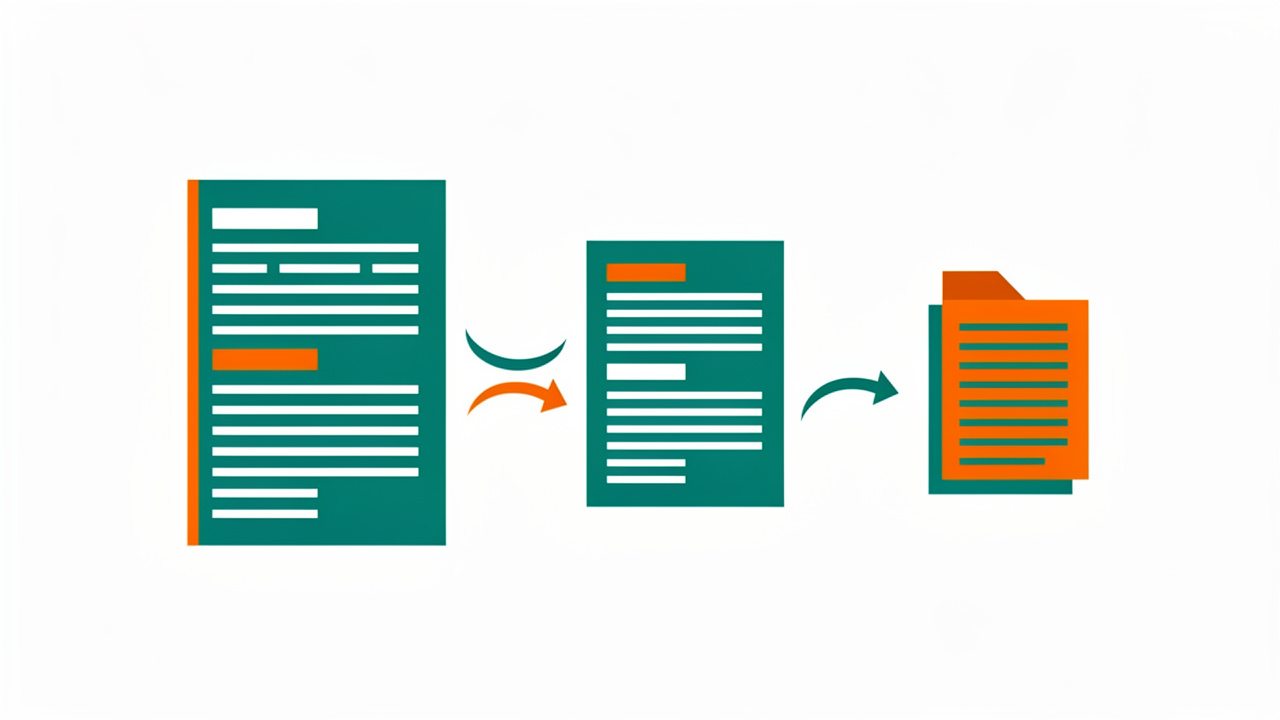
Minifying JSON means stripping out every unnecessary space, line break, and indent so the file shrinks down to its smallest possible size. This matters for performance because smaller JSON payloads transfer faster over a network, which translates directly into quicker page loads and lower bandwidth use for both the server and the end user’s device. Minifying is one of the most performance-critical jobs JSON tools handle for production sites.
Minified JSON isn’t meant for human eyes, so most developers keep a formatted version on hand throughout development and only minify right before deployment.
Tip: never minify your working copy. Keep a readable version saved separately so you’re not stuck reformatting a single-line file the next time you need to make a change.
Stripping whitespace this way can meaningfully cut file size, which adds up quickly across thousands of API calls.
Which JSON conversion tools should you know about?

JSON conversion tools should be on your radar whenever your data needs to move between systems built around different formats. A converter bridges the gap between JavaScript Object Notation and formats like best CSV to JSON, YAML, or a specific programming language’s native syntax, saving you from writing a custom parser for a task you’ll likely only do once. Each conversion type solves a distinct workflow problem, from spreadsheet analysis to configuration management to backend code generation.
| Conversion | Best for |
|---|---|
| JSON to CSV | Spreadsheet analysis and reporting |
| JSON to YAML | Human-readable configuration files |
| JSON to PHP, Python, or JavaScript | Native code without manual parsing |
JSON to CSV and YAML
JSON to CSV conversion flattens nested JSON data into rows and columns, making it easy to open in a spreadsheet or hand off to someone who isn’t comfortable reading raw code. YAML to JSON conversion goes a different direction, producing a cleaner, indentation-based format that many developers find easier to scan, which is why configuration files for tools like Kubernetes lean on YAML so heavily.
JSON to code (PHP, Python, JavaScript)
Converting JSON straight into PHP, Python, or JSON to TS saves a parsing step, letting you drop the output directly into your codebase as a native array or object. This matters most for backend developers who juggle multiple languages across a single stack, since a converter removes the risk of typos that creep in during manual conversion. It’s a small shortcut that adds up across many projects.
How do you visualize and explore complex JSON data?

Visualizing complex JSON data means displaying its structure as an expandable, collapsible tree instead of a flat block of text, so you can explore nested objects and arrays one layer at a time. A JSON tree viewer lets you drill into a specific field, collapse sections you don’t need, and search for a key buried deep inside a large API response without scrolling through hundreds of lines.
Schema tools take exploration a step further by describing what a JSON document should contain, including required fields, data types, and validation rules, an approach formalized in recent research on schema validation and evaluation for JSON datasets, which is useful when documenting an API for other developers. Some schema tools even generate railroad diagrams, a visual notation that maps out structure more clearly than a written description ever could. Both are JSON tools built for exploration rather than plain formatting.
Why does browser-based mean better privacy?
Browser-based means better privacy because the JSON tool processes your data entirely on your own device, with nothing ever uploaded to an external server. Since the information never leaves your machine, there’s no file sitting on someone else’s storage, no transmission to intercept, and no account tied to the data you paste in. This matters whenever you’re working with proprietary configuration files, client data, or anything you wouldn’t want stored outside your control.
Tools Repository runs its JSON tools fully in the browser, with no login, no tracking, and no data collection of any kind, making it a practical choice for quick, everyday tasks involving sensitive information. For freelancers handling client data or students working on coursework, that privacy-first setup means one less thing to worry about before pasting anything in.
The takeaway
JSON tools exist to make working with data less painful, covering everything from formatting and validation to minification, conversion, and visualization in one browser tab. Whether you’re cleaning up an API response, shrinking a payload for production, converting a dataset for a spreadsheet, or mapping out a schema for documentation, there’s a dedicated tool built for that exact job.
Choosing a free, browser-based option like Tools Repository means you get all of that functionality without a sign-up form, a subscription, or any question about where your data ends up. The next time a messy JSON file lands on your screen, open a best JSON formatter online and see how quickly it turns into something you can actually read.
Frequently asked questions
Is it safe to paste sensitive JSON data into an online tool?
Yes, as long as the tool processes data locally in your browser instead of transmitting it to a server. Before pasting anything sensitive, check the tool’s description or privacy policy for an explicit statement that no data gets uploaded or stored anywhere.
What’s the difference between JSON and XML?
JSON is lighter and easier to read than XML, using simple key-value pairs instead of opening and closing tags. XML to CSV requires more characters to represent the same data, which makes JSON the faster, more compact choice for most modern web APIs.
Can I edit JSON directly in a formatter tool?
Yes, most JSON formatters let you edit the text live, instantly re-formatting and re-validating as you type. Once you’re happy with the result, you can copy it to your clipboard or download it as a file right away.
Do I need coding experience to use JSON tools?
No, basic formatting, validating, and converting tasks don’t require any coding knowledge at all. Most JSON tools are built with a simple paste-and-click interface designed for complete beginners as well as experienced developers.
What file size limits do JSON tools usually have?
Most browser-based JSON tools comfortably handle files up to 100 MB or more, which covers the vast majority of everyday use cases. For exceptionally large datasets beyond that, a command-line JSON utility is usually a better fit for streaming and filtering data from the terminal.