
Online Color Picker Tool for Accurate HEX, RGB, HSL

Alisha Anjum

Introduction
Color that looks slightly off can break a website, logo, or slide. Small differences confuse users and weaken a design. Guessing colors by eye wastes time and still leaves things inconsistent.
An online color picker tool solves that problem fast. It is a browser page that lets you click on any pixel, then instantly shows the exact HEX, RGB, and HSL codes. No software install, no account—just open the page, drop in an image or use a screen picker, and copy the color into your CSS, design app, or document.
This guide walks through what these tools do, how pixel picking works, when to use HEX vs RGB vs HSL, why client-side processing protects your files, and how Tools Repository fits into a simple, privacy-first workflow. Ready to get reliable colors without extra apps or sign‑ups?
“In visual perception a color is almost never seen as it really is — as it physically is.”
— Josef Albers, Interaction of Color
Key Takeaways
An online color picker tool reads the exact pixel you click and shows matching color codes. You can copy those codes straight into code editors, design tools, or slide decks. This removes guesswork and keeps colors repeatable across projects.
The picker outputs HEX, RGB, and HSL formats in one place. HEX fits HTML and CSS, RGB fits screen-based design, and HSL is ideal when you build lighter or darker theme shades. You can switch formats without doing any math.
Modern pickers work fully in your browser with client-side code. Images, screenshots, and PDFs stay on your device and are not sent to a server. That keeps brand work, internal mockups, and early drafts safer.
Different groups use these tools in different ways: developers matching CSS, designers building palettes, and students learning color theory. Tools Repository adds free helpers such as a Color Contrast Checker and Color Palette Generator to support that work.
What Is An Online Color Picker Tool And How Does It Work?

An online color picker tool is a browser-based utility that reads the color of a single pixel and converts it into codes like HEX, RGB, and HSL. The tool listens to your click, samples the pixel underneath, and shows the exact values on screen. You then copy those codes into HTML, CSS, design software, or presentation tools.
Under the hood, the picker uses JavaScript to scan pixel data on a canvas element or through a screen-picking API. When you click on a spot in an image, the script reads the Red, Green, and Blue values stored for that pixel. Those three numbers then convert into formats that web browsers and design apps understand. According to MDN Web Docs, this kind of pixel access uses standard Canvas and EyeDropper APIs in modern browsers.
Most tools offer two main ways to pick colors:
Image-based picking
You upload a file, drag and drop it from your desktop, paste a screenshot, or paste an image URL. The tool draws the image inside the page, often with a zoomed preview so you can hit the exact pixel. When you click, new color codes appear and are ready to copy.Screen-based picking
Here the tool uses the EyeDropper API that browsers like Google Chrome, Microsoft Edge, and Opera support. You click a “Pick color” button, your cursor changes, and you can move over anything on your screen, including:a PDF in Adobe Acrobat
a mockup in Figma
a page in Mozilla Firefox
One click sends that pixel color back to the online color picker tool.
In a typical workflow, the steps look like this:
Open the Tools Repository color picker in your browser.
Upload or paste an image, or start the screen picker.
Hover over the exact area you care about.
Click once and copy the HEX, RGB, or HSL value shown.
This approach works on Windows, macOS, Linux, and even ChromeOS, since the only requirement is a modern browser. According to Stack Overflow, more than half of professional developers use JavaScript regularly, so browser-based tools fit naturally into their day-to-day work.
HEX, RGB, And HSL — What Color Formats Does A Color Picker Output?
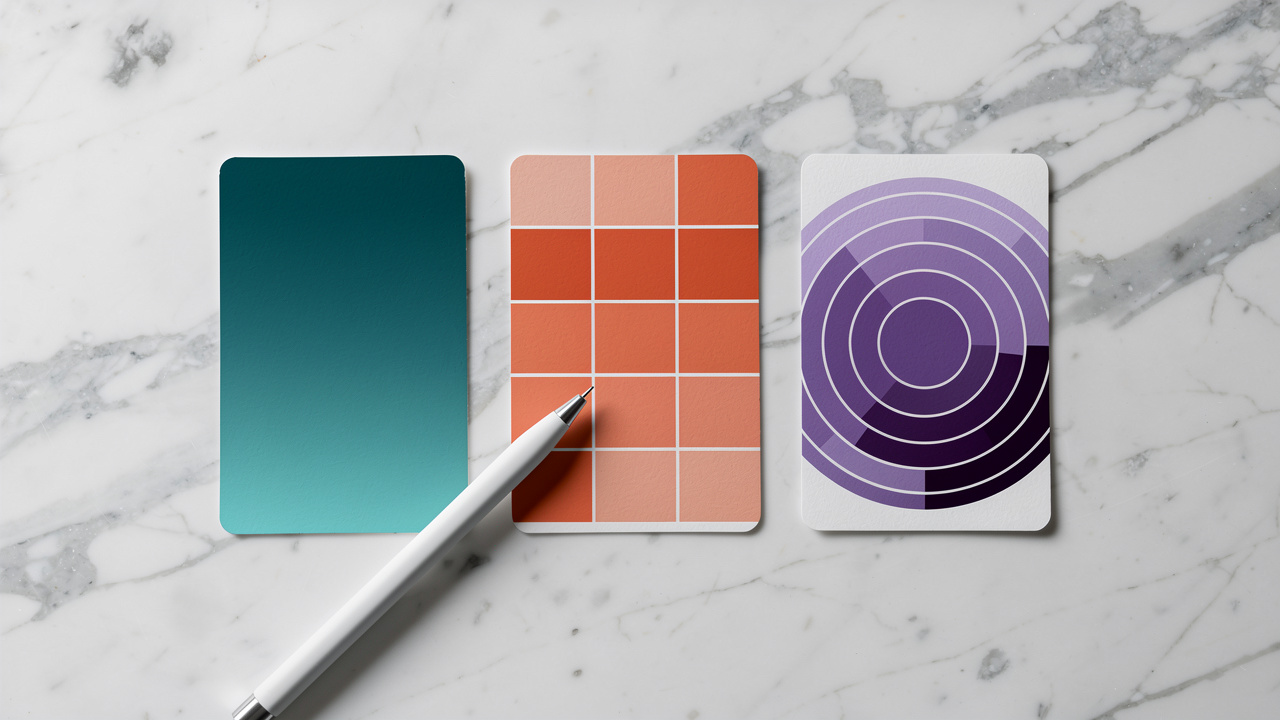
An online color picker tool usually shows at least three outputs at once: HEX, RGB, and HSL, which cover most coding and design needs. Each format describes the same color in a different way, so picking the right one depends on where you will paste it.
HEX is the standard format for the web. It looks like #2596be and packs Red, Green, and Blue values into six characters. Browsers such as Google Chrome and Safari read HEX in CSS without any extra work. According to the W3C, CSS color specs still treat HEX as a first-class way to represent colors.
RGB looks like rgb(37, 150, 190). It lists how much red, green, and blue light a pixel uses, from 0 to 255. UI designers in tools like Figma, Sketch, and Adobe XD often prefer RGB because it matches the sliders in their panels. It also extends easily to rgba() when you want transparency.
HSL stands for Hue, Saturation, and Lightness. A picker might show it as something like 200, 68%, 45%.
Hue picks a point around the color wheel.
Saturation controls how intense the color feels.
Lightness controls how close it is to white or black.
According to Nielsen Norman Group, designers often think in terms of lightness and saturation when they adjust interface themes, which makes HSL feel natural for design systems.
Here is a simple comparison of when each format shines:
| Format | Typical Use Case | Strength |
|---|---|---|
| HEX | HTML and CSS for sites and web apps | Very compact and widely supported by browsers and frameworks like React and Tailwind CSS |
| RGB | Interface design and screen graphics | Matches sliders in tools such as Figma and Adobe Photoshop, easy to adjust channels |
| HSL | Theming, palettes, and accessible color systems | Simple to make tints and shades that keep the same hue, helpful for design systems |
Tip: Use HEX for quick CSS edits, RGB when matching design tool sliders, and HSL when you need consistent steps between default, hover, and pressed states.
Some tools also include CSS variables, named colors, or even HSV. However, HEX, RGB, and HSL cover nearly all daily work for developers, marketers, analysts, and content creators.
Why Privacy And Zero-Cost Access Matter When Picking Colors Online

Privacy matters when you drag a client logo, unreleased landing page, or internal dashboard screenshot into any online color picker tool. Many teams now work under strict NDA rules, and they cannot risk assets being stored on remote servers. That is why modern tools rely on client-side processing.
With client-side processing, the browser reads pixels directly in memory. When you upload, paste, or drop a file, JavaScript in the page analyzes it on your device. No image bytes go to a backend. The data lives only in your RAM and disappears when you close the tab. For sensitive brand work, this is a big deal. According to WebAIM, over 80 percent of home pages they tested have contrast issues, so teams often check many internal screens that they cannot share outside.
Tools Repository follows this privacy-first approach across its color utilities:
The Color Contrast Checker lets you test color pairs against WCAG guidelines without sending text or colors to a server.
The Color Palette Generator helps you build matching sets of colors for interfaces, dashboards, or reports.
The color picker itself runs in your browser, with no tracking scripts and no sign‑up walls.
“Use of color should not be the only visual means of conveying information.”
— W3C Web Content Accessibility Guidelines (WCAG)
Cost is the other side of the story. Many creative workers rely on free tools because a license for Adobe Photoshop, Sketch, or Affinity Designer can be hard to justify for quick tasks. Tools Repository gives them more than one hundred browser tools in one place at zero price. That set ranges from color helpers to text formatters and JSON utilities, all safe to use in commercial projects.
For solo developers, agencies, and students, this mix of privacy, no accounts, and free access turns the color picker into a handy daily tool instead of something locked behind paywalls or logins.
Who Uses An Online Color Picker Tool — And How?

Different groups reach for an online color picker tool in different ways, but they all want the same thing: fast, exact color codes with no friction. The tool fits naturally into workflows that already use Chrome, Firefox, Safari, or Edge.
Web developers and front-end engineers often start with static designs in Figma, Adobe XD, or Sketch. They use the picker to grab exact HEX values from exported PNGs or staging pages, then paste those into CSS, SCSS, or Tailwind CSS config files. That keeps components in React, Vue, or Svelte pixel-perfect with the original mockups.
UI and UX designers use the picker to pull colors from PDFs, slide decks in Microsoft PowerPoint, or inspiration galleries on Dribbble and Behance. HSL output is especially handy when they build theme systems that need consistent hover, focus, and active states. The picker gives them a base hue, then they adjust saturation and lightness by fixed steps for each state.
Freelancers and small business owners work across many platforms. One day they style a WordPress blog, the next day a Shopify store, a Mailchimp newsletter, or a Canva graphic. A free picker helps match button colors, headings, and backgrounds to a logo without buying extra software. According to HubSpot, consistent branding across channels can increase revenue, so keeping colors aligned is not just cosmetic.
To keep their work organized, many of these users combine several Tools Repository utilities:
Grab a color with the Color Picker.
Check readability with the Color Contrast Checker.
Save a set of brand colors with the Color Palette Generator.
Students, bloggers, and content writers use color pickers in lighter ways but still often. A writer formatting a post in Notion or Google Docs might match heading colors to a chart exported from Google Sheets. A design student can study how famous brands use hue and contrast by sampling screenshots. Tools Repository supports these groups with its color utilities plus general helpers like JSON viewers and code formatters, all inside one minimal interface.
The Bottom Line: Instant Color Extraction Without The Complexity

The Bottom Line section sums up why an online color picker tool feels so helpful in daily work. It gives you instant color codes without installing software, creating accounts, or dealing with complicated menus. You click, copy, and paste, and your interfaces, slides, and graphics stay consistent.
Because tools like those on Tools Repository run fully in the browser with client-side code, your images and screenshots stay private. You also get related helpers such as the Color Contrast Checker and Color Palette Generator in the same place. That mix turns color picking from a slow side task into a quick, reliable habit.
Conclusion
An online color picker tool pulls most of the technical work out of color choices, so you can focus on layout, copy, or product logic. By supporting HEX, RGB, and HSL in one quick step, it bridges the gap between design and code. Privacy-friendly, zero-cost tools such as Tools Repository make this power available to anyone with a browser. Once you add a picker to your bookmark bar, matching colors across every project starts to feel simple and repeatable.
Frequently Asked Questions
Question 1: How Do I Pick A Color From A PDF Or External Website?
You pick a color from a PDF or site by using the browser EyeDropper API inside the online color picker tool. Open the PDF or page beside the tool window, then click the “Pick color” button (for example, on the Tools Repository color picker). Move the cursor over the PDF or site, click the target pixel, and copy the codes shown.
Question 2: Is An Online Color Picker Tool Safe To Use With Confidential Files?
An online color picker tool that uses client-side processing is safe for confidential files. The image or screenshot stays inside your browser memory and is not sent to a server. Tools Repository follows this model, so internal dashboards, brand guides, and unreleased layouts remain on your device.
Question 3: What Is The Difference Between HSL And HSV In A Color Picker?
HSL and HSV both describe color with hue and saturation, but they treat brightness differently:
HSL uses Lightness, which mixes white and black into the color.
HSV uses Value, which changes how strong the base hue appears.
Designers usually prefer HSL for interface themes, while painters and 3D artists often pick HSV because it feels closer to mixing light.
Question 4: Do I Need To Create An Account To Use A Free Color Picker?
You do not need an account for a free, browser-based online color picker tool such as those on Tools Repository. You open the page, use the picker, and leave without any login, subscription, or credit card screen. This keeps the workflow fast for quick, everyday color tasks.