
Replace Text Instantly: Fast, Free Find-and-Replace Guide

Alisha Anjum

Scanning through a long document to fix the same typo, phrase, or placeholder over and over gets old fast. Every time you need to replace text by hand, you risk missing an instance, breaking formatting, or losing track of where you left off. This kind of manual editing eats up time that could go toward actual writing, coding, or design work, and the more text you have, the worse it gets.
A text replace tool fixes this in one step. Paste your content, tell it what to find, tell it what to swap in, and the tool handles every match at once. This guide walks through what text replacement means, where professionals use it daily, how regular expressions add advanced pattern matching, and what to look for in a free option like Tools Repository that keeps your pasted content private. Keep reading to see how a few clicks can replace hours of manual edits.
Key takeaways
- Replacing text means finding a word or phrase and swapping it for something else across an entire document in one action, instead of editing line by line.
- Case sensitivity decides whether “red,” “Red,” and “RED” get treated as the same word or as separate matches, which matters for proper nouns and brand names.
- Regular expressions let you match patterns like phone numbers or list formatting instead of typing every exact variation by hand.
- Developers, writers, students, and data handlers all use text replacement for different repetitive tasks, from testing to citation cleanup.
- A trustworthy free tool processes your text locally in the browser and never asks you to log in or install anything.
Table of Contents
- What does it mean to replace text?
- Where can you use a text replace tool?
- How does regex make text replacement more powerful?
- What should you look for in a free text replace tool?
- The takeaway
- Frequently asked questions
- Can I replace text without losing my original formatting?
- Is there a limit to how much text I can replace at once?
- What’s the difference between replace all and replace one at a time?
- Can text replace tools handle multiple languages?
- Do I need to know how to code to use regex replacement?
- Will using an online text replace tool put my data at risk?
What does it mean to replace text?
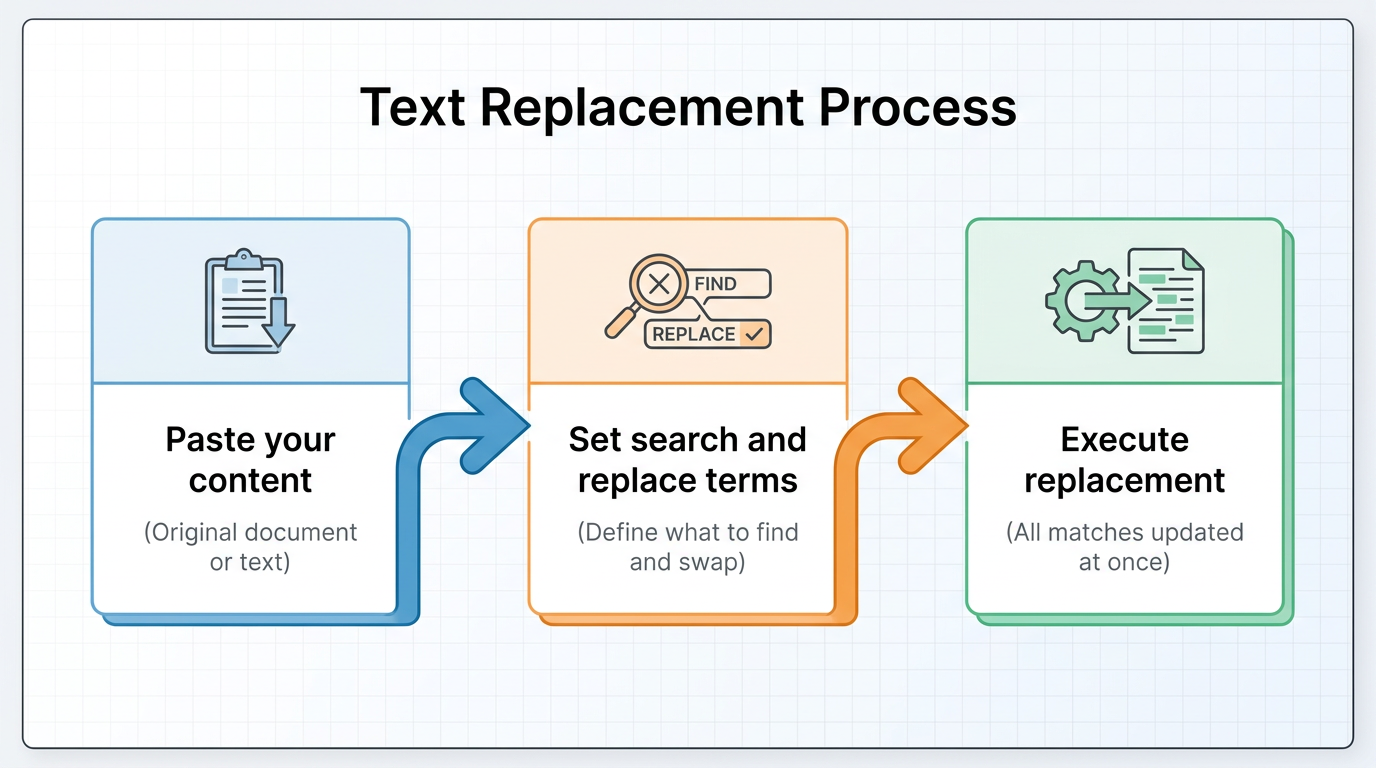
Replacing text means finding a specific word, phrase, or pattern inside a document and swapping it for something else in one move. The process behind most replace text tools follows three simple steps, where you paste the original content into an input box, type the text you want to find, and type what should appear instead. Once you click replace, the tool scans the entire document and swaps out every matching instance in a single pass, rather than making you hunt for each one by hand. This matters because manual searching invites mistakes, especially in a document with duplicate line remover. A basic tool treats every match the same way by default, so if the word “invoice” appears fifty times, all fifty get updated together. That single operation replaces what used to be a slow, error-prone task with something that takes seconds. For anyone editing code, contracts, spreadsheets, or long-form writing, this shift from manual to automatic is the entire value of the tool.
Why case sensitivity changes your results
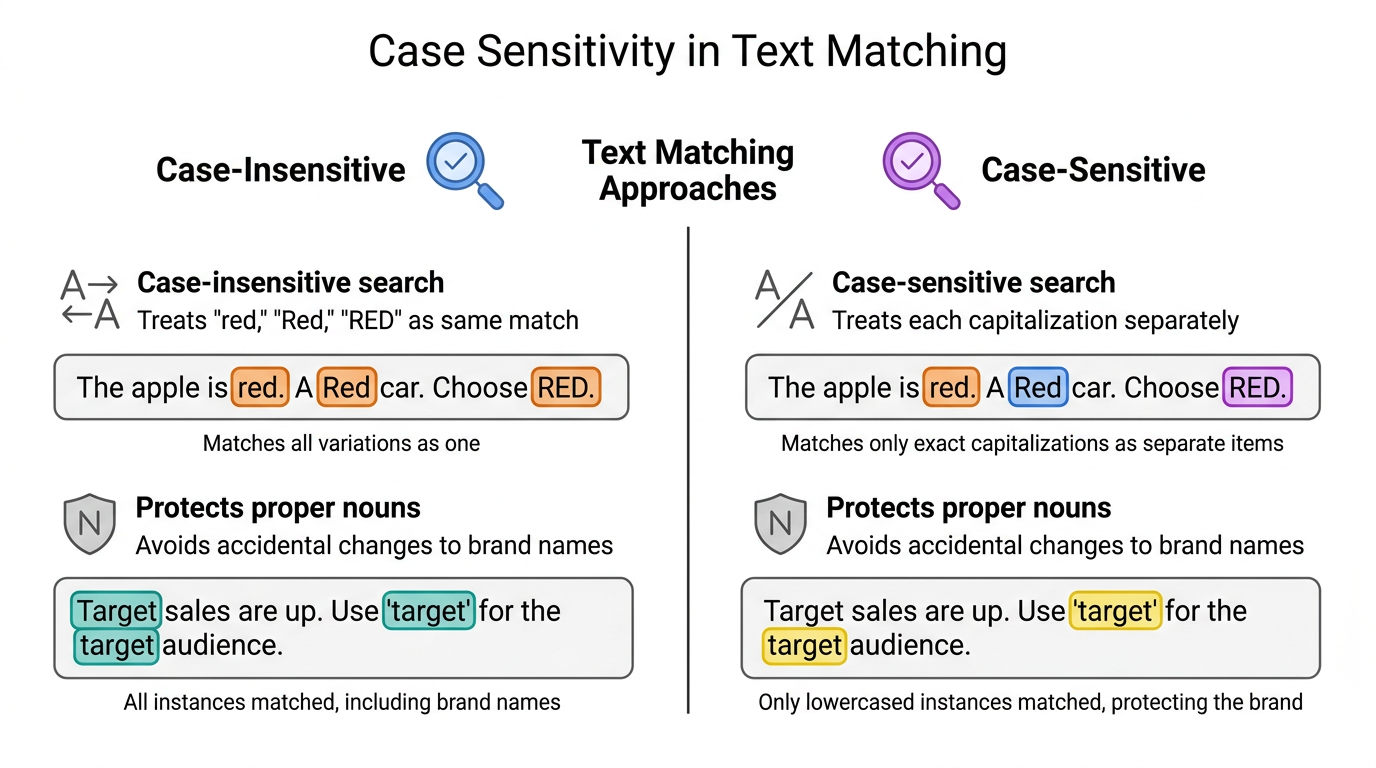
Most text replace tools search without case sensitivity turned on by default, meaning a search for “red” only touches the lowercase word and leaves “Red” or “RED” untouched. Some tools let you flip on case-sensitive matching when you need tighter control over which instances get changed, and this single setting decides how broadly your replacement reaches.
Picture a document with both “red” and “Red” scattered throughout its pages. A case-insensitive search for “red” changes only the lowercase entries, leaving “Red” exactly as written. This distinction protects brand names, acronyms, and proper nouns from accidental changes, which matters a lot when case converter tool in your content.
Where can you use a text replace tool?
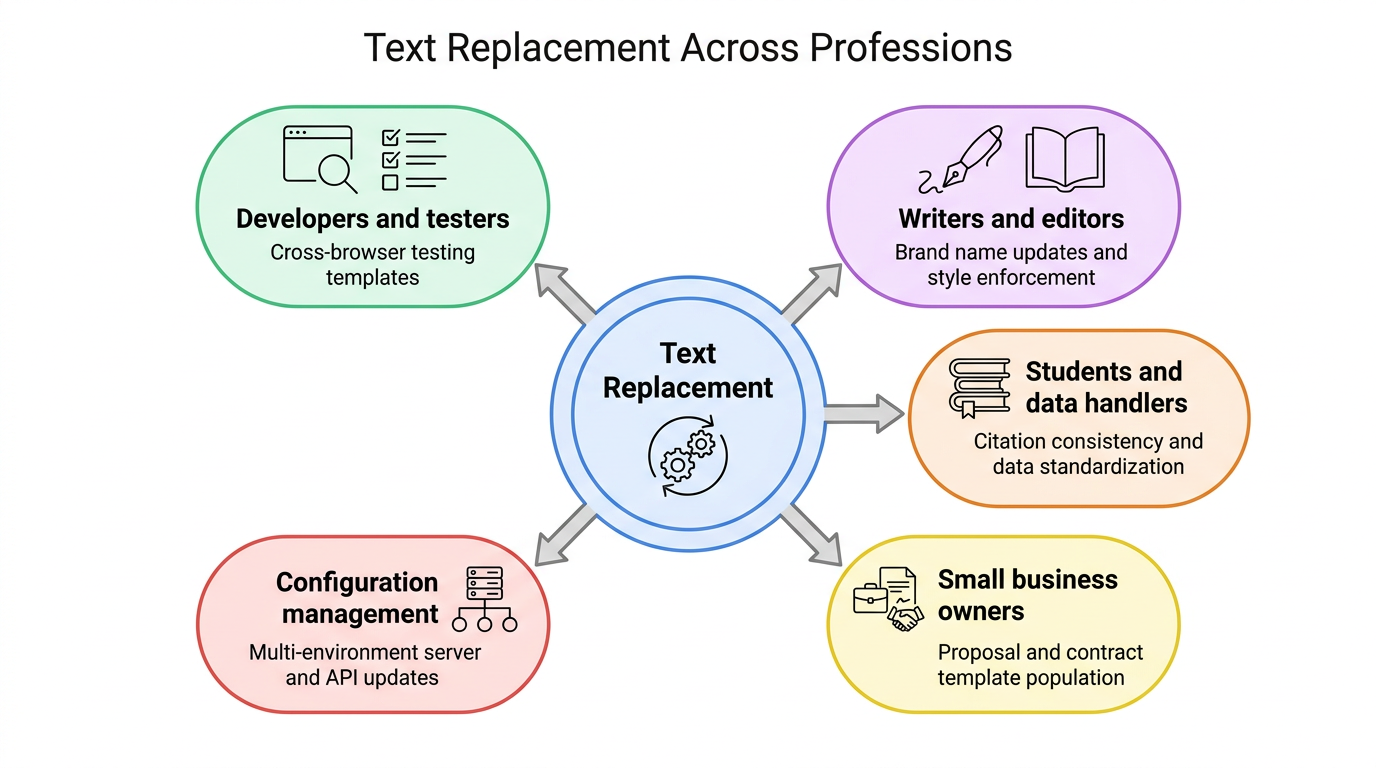
A text replace tool earns its place in workflows spanning coding, writing, and data management, wherever repeated text needs a fast, uniform update. Developers rely on it to generate test variations, update configuration files across environments, and adjust code without manually touching every file. Writers and editors use it to enforce brand names, fix terminology, and populate templates without retyping boilerplate copy line by line. Students and researchers apply it to standardize citations and clean up messy data imports, while small business owners use it to fill out proposals and contracts from a single master template. The common thread across every one of these tasks is repetition, since any job that involves changing the same thing more than a few times benefits from letting a tool handle the heavy lifting. Mapping your own task to one of these categories usually reveals whether a simple find-and-replace will do the job or whether you need the more advanced pattern matching that regular expressions provide.
For developers and testers
Developers use text replacement to speed up cross-browser testing by building one test template with placeholder variables, then swapping in browser-specific values to generate multiple test cases in seconds. The same approach updates configuration files across development, staging, and production environments, replacing server addresses or API keys without editing each file by hand, similar to how the ReplaceText processor documentation describes automating content substitution within data flows.
For writers and editors
Writers and editors reach for text replacement during rebrands, when a company name or product term needs updating across every page of a document collection. It also enforces style guide rules, word counter, and fills templates like email drafts or proposals with client-specific details in one pass instead of retyping boilerplate content.
For students and data handlers
Students writing research papers use text replacement to keep terminology and citation formats consistent across character counter, catching every instance of a term that needs adjusting before submission. Data handlers apply the same logic to CSV to JSON converter, standardizing date formats, abbreviations, or address styles like “St.” versus “Street” across thousands of rows at once.
How does regex make text replacement more powerful?
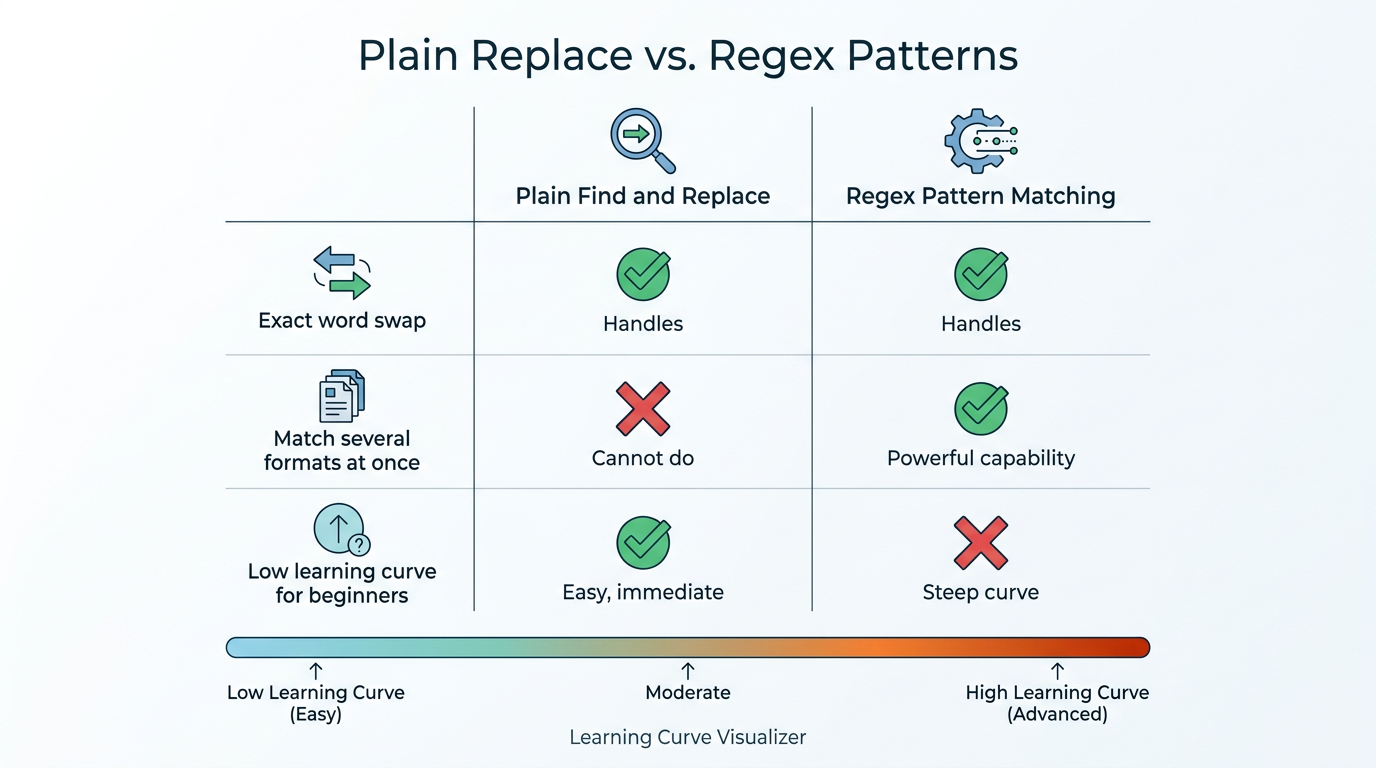
Regular expressions, often shortened to regex, make text replacement more powerful by letting you search for patterns instead of exact words. Instead of typing out every possible variation of a phrase, number, or format, you write one pattern that matches all of them at once. This turns basic string swapping into something flexible enough to catch phone numbers, dates, or list formatting regardless of small differences between each instance. A beginner might worry that regex requires JSON formatter, but many patterns are short and reusable once you understand a handful of symbols like digits, periods, or spaces. Two examples show regex at work without getting too technical. The first turns a numbered list into a bulleted one by targeting the digits and periods that start each line. The second protects sensitive information by finding several phone number formats and swapping them all for one placeholder, which is exactly the kind of task a plain find-and-replace can’t handle on its own.
| Task | Plain find and replace | Regex pattern matching |
|---|---|---|
| Exact word swap | Yes | Yes |
| Matching several formats at once | No | Yes |
| Learning curve for beginners | Very low | Moderate |
Turning a numbered list into a bulleted list
A pattern like /(d+)./g finds any digit followed by a period, which is exactly how numbered list items start. Replacing every match with a dash instantly turns “1. Mount Everest” into “- Mount Everest” throughout the whole document, converting an list sorter tool to bullets in one operation instead of editing each line by hand.
Hiding sensitive information like phone numbers
A single regex pattern can catch phone numbers written as “(415) 445-8188,” “212 223 1210,” or “7201990034” and replace every format with a placeholder like “(number hidden).” This protect privacy online in shared documents, healthcare records, or client files without forcing anyone to manually search through pages of text for each number format.
What should you look for in a free text replace tool?

A good free text replace tool combines speed, a clean layout, and respect for whatever you paste into it, since these utilities often handle proprietary code, client contracts, or personal data. Look for a simple three-panel design with a remove extra spaces, plain fields for search and replacement terms, and an output box that updates instantly, since clutter or confusing menus slow down a task that should take seconds.
Privacy matters just as much as speed, especially if you regularly paste sensitive information, unpublished drafts, or client data into a browser tool, an area where truthful text sanitization guided by inference attack research highlights how rewritten text can still leak identifying details if handled carelessly. A few markers separate a trustworthy option from one worth skipping:
- Local processing, so pasted text never travels to a remote server to be logged, stored, or exposed somewhere you can’t control.
- No-login access, meaning no account data collection and no friction before you can start working.
- A simple interface that doesn’t bury the find and replace fields under extra menus or upsells.
Why Tools Repository fits this need
Tools Repository opens directly in the browser with no installation or account required, so pasting text and getting a replaced result takes seconds. All processing happens locally, meaning pasted content is never sent to a server or stored anywhere. It sits alongside more than free utilities built for developers, writers, and designers.
A trustworthy free tool is one you never have to think twice about before pasting in real work.
The takeaway
Text replacement takes a task that used to mean scanning line by line and turns it into a single, reliable operation that catches every match at once. Basic find-and-replace handles everyday consistency work, while regular expressions step in when you need to catch patterns instead of exact words, whether that’s reformatting a list or hiding sensitive numbers.
The next time you face a document full of repeated fixes, skip the manual edit and reach for a browser-based tool instead. A free, privacy-first option like Tools Repository lets you paste text, set your search and replacement terms, and walk away with a clean result in seconds, without installing anything or handing over your data.
Frequently asked questions
Can I replace text without losing my original formatting?
Plain-text replacement preserves line breaks and spacing, but it won’t carry over markdown previewer like bold text, fonts, or colors from a word processor. If you’re working in a formatted document, paste the result back in carefully and check the layout afterward to confirm nothing shifted unexpectedly.
Is there a limit to how much text I can replace at once?
Most browser-based tools handle large blocks of text without strict file size limits, so pasting a full chapter or a long config file usually works fine. For extremely large files, breaking the work into smaller batches can still process faster and make results easier to check.
What’s the difference between replace all and replace one at a time?
Replace all changes every matching instance the moment you run it, while text diff checker lets you approve or skip each change individually. The second approach is safer for legal documents or client files, where one wrong swap could change the meaning of a sentence.
Can text replace tools handle multiple languages?
Basic text replacement works with any language that uses standard characters, since it’s matching text strings rather than translating meaning. Regex patterns built for Latin letters and digits may need small adjustments to work properly with non-Latin scripts like Arabic, Chinese, or Cyrillic text.
Do I need to know how to code to use regex replacement?
You don’t need coding experience to use basic regex patterns, since many common ones are short and easy to copy once you understand the symbols involved. Start with simple patterns for digits or spaces before moving on to more advanced pattern matching as you get comfortable.
Will using an online text replace tool put my data at risk?
A tool that processes text locally in your browser never transmits your content to a server, so your data stays on your own device. Before pasting anything sensitive into a new tool, it’s worth checking its privacy policy to confirm exactly how it handles your input.