
Split Text Online: 4 Easy Methods for Any Project

Alisha Anjum

Messy text piles up fast. A CSV export lands in your inbox with a thousand comma-packed rows, or a long paragraph needs breaking into readable chunks for a mobile screen. Manually chopping that content line by line wastes time and invites mistakes, and copy-pasting fragments one at a time gets tedious fast, especially against a deadline.
A text splitter tool solves this by dividing any block of text into smaller pieces automatically, based on rules you choose, whether that’s a single character, a pattern, or a fixed number of parts. Tools Repository offers a free, browser-based split text tool that handles this without asking you to sign up or install anything. This guide walks through the four core splitting methods, the formatting options that make your output ready to use right away, and how to match the right method to your project, whether you’re cleaning data, prepping a design, or organizing study notes.
Let’s start with what a text splitter actually does and why it saves so much manual effort.
Key takeaways
- There are four core splitting methods worth knowing, character based, regex based, fixed length, and equal parts, and each one fits a different kind of source text.
- Output customization, including separators and wrapping characters, turns a rough split into something you can paste directly into code, a spreadsheet, or a document.
- Free, browser-based tools like Tools Repository avoid the privacy and installation concerns that come with desktop software or accounts.
- Matching the splitting method to your actual goal, whether it’s data cleanup, design testing, or writing, produces better results than defaulting to one approach every time.
Table of Contents
- What is a text splitter and why does it matter?
- How do you split text? 4 core methods explained
- How can you customize your split text output?
- Where do you actually use a text splitter?
- Why choose a free browser-based splitter like Tools Repository?
- The takeaway
- Frequently asked questions
- Can I split text without knowing how to code?
- What’s the difference between a delimiter and a separator in text splitting?
- Can I split text by sentence or paragraph instead of characters?
- Is it safe to split sensitive or private text online?
- Can I upload a file instead of pasting text to split it?
- What is the best method for splitting CSV-style data?
What is a text splitter and why does it matter?
A text splitter is a free, browser-based tool that breaks a block of text into smaller pieces based on rules you set, such as a character, a pattern, or a target number of chunks. It matters because manual splitting is slow, error-prone, and gets worse as the text gets longer, especially when you’re handling hundreds of lines at once.
Developers use these tools to parse raw data before feeding it into an application. Writers use them to reorganize long documents into sections, while students use them to format vocabulary lists or break up dense study material. None of these tasks require any coding background, which is exactly why split text tools have become an everyday utility rather than a niche developer feature.
How do you split text? 4 core methods explained
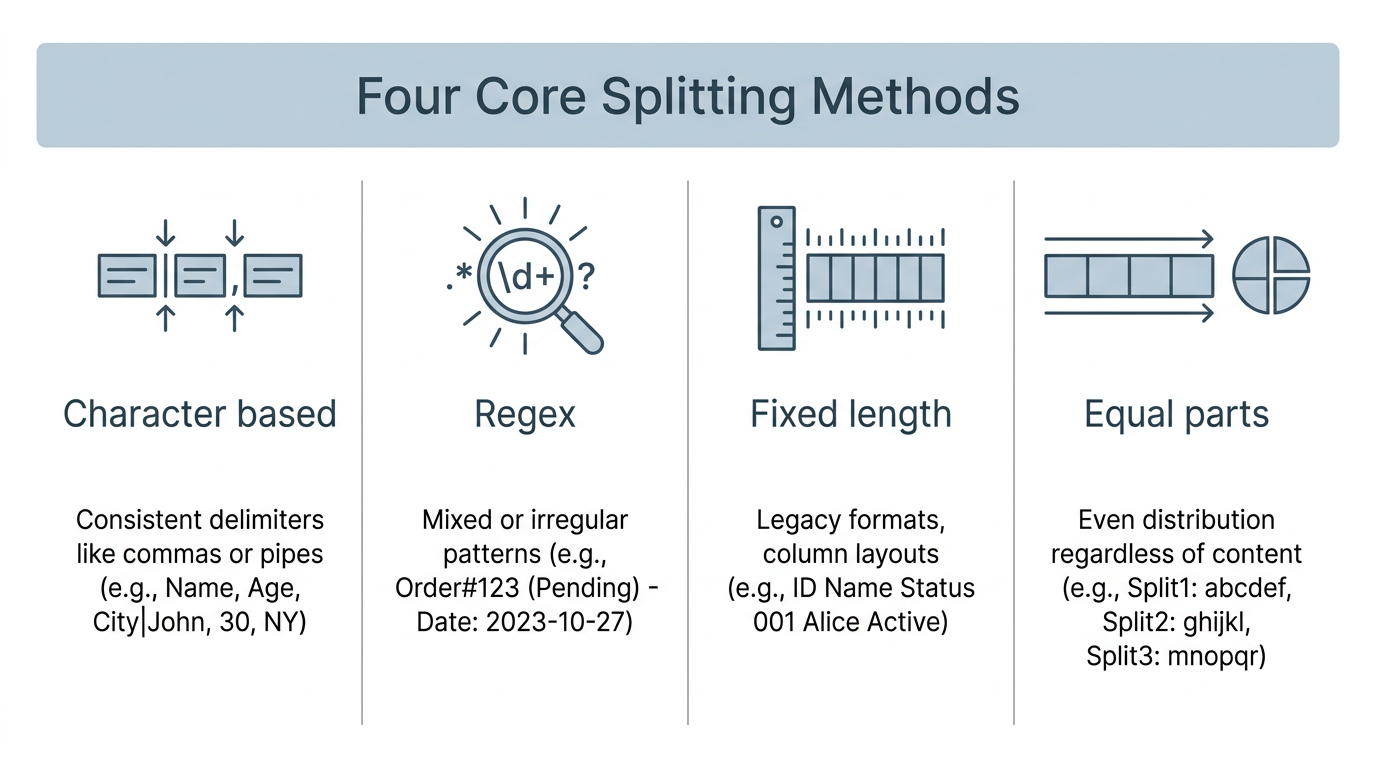
Splitting text well starts with picking the right method for your source material. Text splitting tools typically offer four distinct approaches, character based, regex based, fixed length, and equal parts division, and each one targets a different kind of input, from simple comma-separated lists to complex patterns buried inside unstructured paragraphs. Picking correctly the first time saves you from re-splitting the content twice.
| Method | Best for | Example |
|---|---|---|
| Character based | Consistent delimiters like commas or pipes | fan#tas#tic → fan, tas, tic |
| Regex | Mixed or irregular patterns | su1per2awe3some → su, per, awe, some |
| Fixed length | Legacy formats, column layouts | longtextislong → longt, extis, long |
| Equal parts | Even distribution regardless of content | aviation → av, ia, ti, on |
Splitting by character or symbol
The simplest splitting method uses a delimiter, a character that marks where each new chunk should start, similar to how JavaScript’s built-in string splitting method divides text into an array of substrings. Set the hash symbol as your delimiter, and the text “fan#tas#tic” becomes three separate pieces, fan, tas, and tic. Commas, spaces, pipes, and hyphens all work the same way. This method suits CSV data, bulleted lists, and any text where one consistent separator runs through the whole thing, an approach also implemented in developer tools like LangChain’s character-based splitter for processing documents before embedding.
Splitting with regular expressions (regex)
Regex, short for regular expressions, is a pattern-matching syntax that finds text based on rules rather than a single fixed character. Typing the pattern d, which matches any digit, into “su1per2awe3some” produces “su per awe some,” stripping every number automatically. Regex handles jobs a plain delimiter cannot, like removing punctuation, isolating words, or splitting on several character types at once. It takes more setup, but it rewards you with far more control over messy or inconsistent text.
Splitting into fixed-length chunks
Fixed length splitting cuts text into pieces of the same character count, no matter what those characters actually are. Setting the chunk width to five turns “longtextislong” into “longt extis long,” with each segment holding exactly five characters. This method fits legacy data formats, fixed-width display fields, and column layouts where every entry has to line up. It’s a common choice in database work and older system migrations where field widths are fixed by design.
Splitting into equal parts
Equal parts splitting divides your text into a set number of chunks, sized as evenly as the character count allows. Ask for four parts from “aviation” and you get av, ia, ti, and on, each roughly the same length. This works well when distributing content across page columns, handing sections to different team members, or mocking up UI layouts with balanced text blocks. The last chunk may hold one extra or fewer character if the total length doesn’t divide perfectly.
How can you customize your split text output?
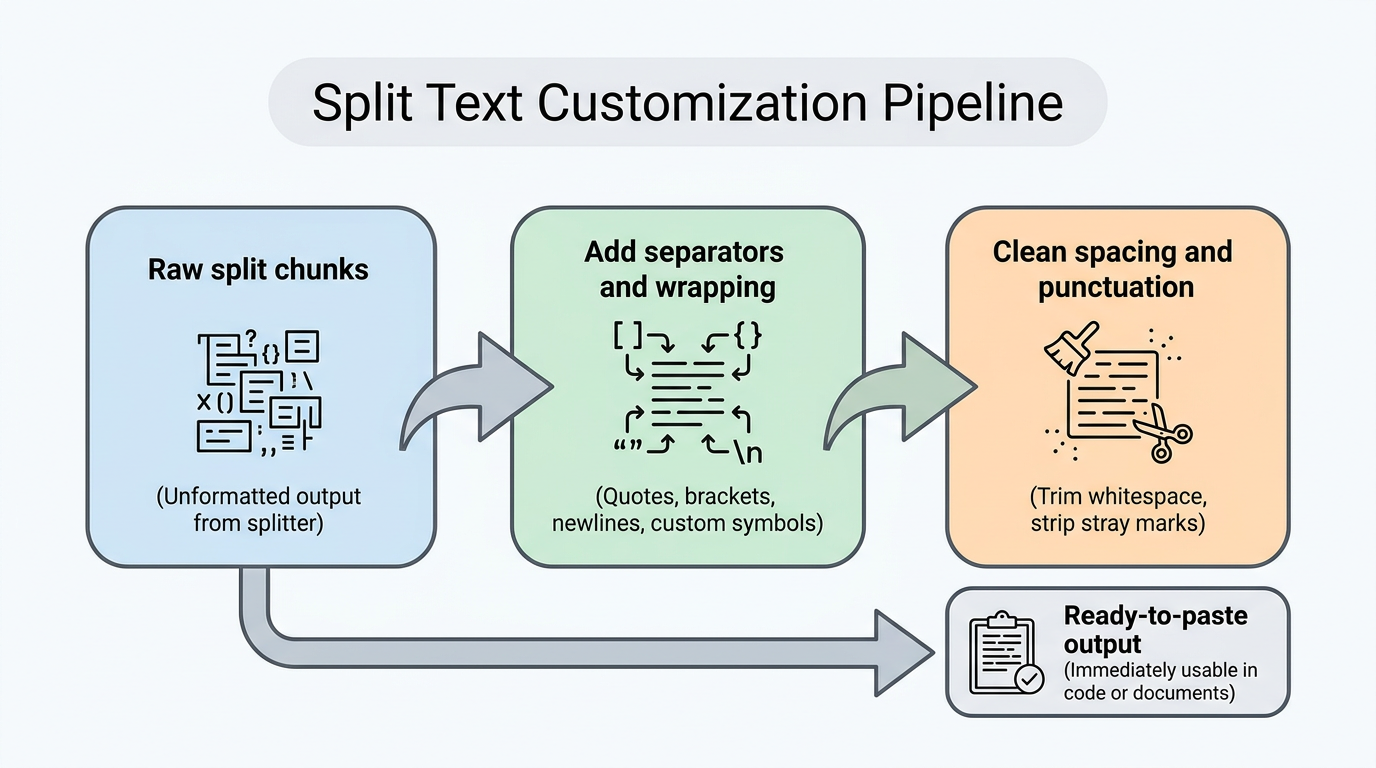
Splitting text is only half the job, since raw chunks rarely land in a format you can use right away. Output separators control what sits between each piece, whether that’s a newline, a comma, or a custom symbol you choose, and getting these details right the first time means you skip a whole round of manual cleanup afterward.
Adding separators and wrapping characters
Some projects need each chunk wrapped in quotes or brackets before it’s usable, especially in code or database work. Split “Do–Re–Mi–Fa–Sol–La–Si” by the en dash, wrap each note in double quotes, and you get a ready-to-paste array.
“Do”, “Re”, “Mi”, “Fa”, “Sol”, “La”, “Si”
This single step replaces the manual work of adding quotation marks to dozens of entries by hand, which matters when you’re writing SQL statements, JSON arrays, or configuration files.
Cleaning up spacing and punctuation
Split text often carries stray spaces or leftover punctuation that need trimming before it looks clean. Consider these common cleanup steps:
- Trimming whitespace from the left or right side of each chunk fixes inconsistent indentation without touching the words inside.
- Stripping punctuation marks removes stray commas, periods, or quotation marks left over from the source text.
- Normalizing line breaks keeps every chunk on its own line instead of leaving mixed formatting behind.
Writers and students preparing study notes or manuscript sections benefit most from this cleanup, since it saves a manual pass through every single line.
Where do you actually use a text splitter?
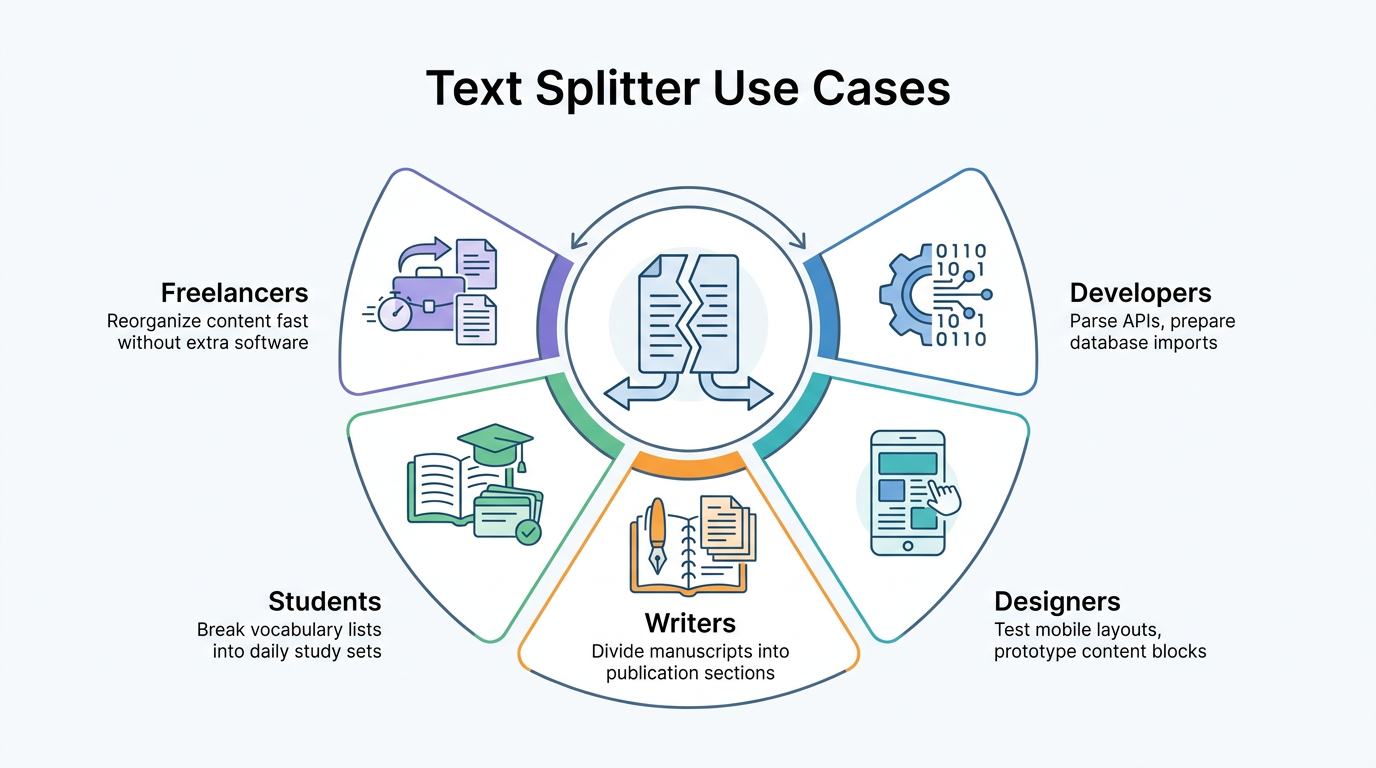
Developers reach for a split text tool when parsing API responses, breaking apart query strings, or prepping raw data for a database import. Designers use the same tool to test how a long paragraph reads once it’s broken into shorter lines for a mobile screen, or to prototype content blocks before handing a layout to a developer. Neither task requires writing a single line of code.
Writers and copyeditors split lengthy manuscripts into sections that match a publication’s format, or divide a document into chunks for easier editing across drafts. Students use the equal parts method to break vocabulary lists or alphabets into study sets sized for daily review. Freelancers and small business owners lean on the same free tools to reorganize content fast, without buying software they’ll only use occasionally.
Why choose a free browser-based splitter like Tools Repository?
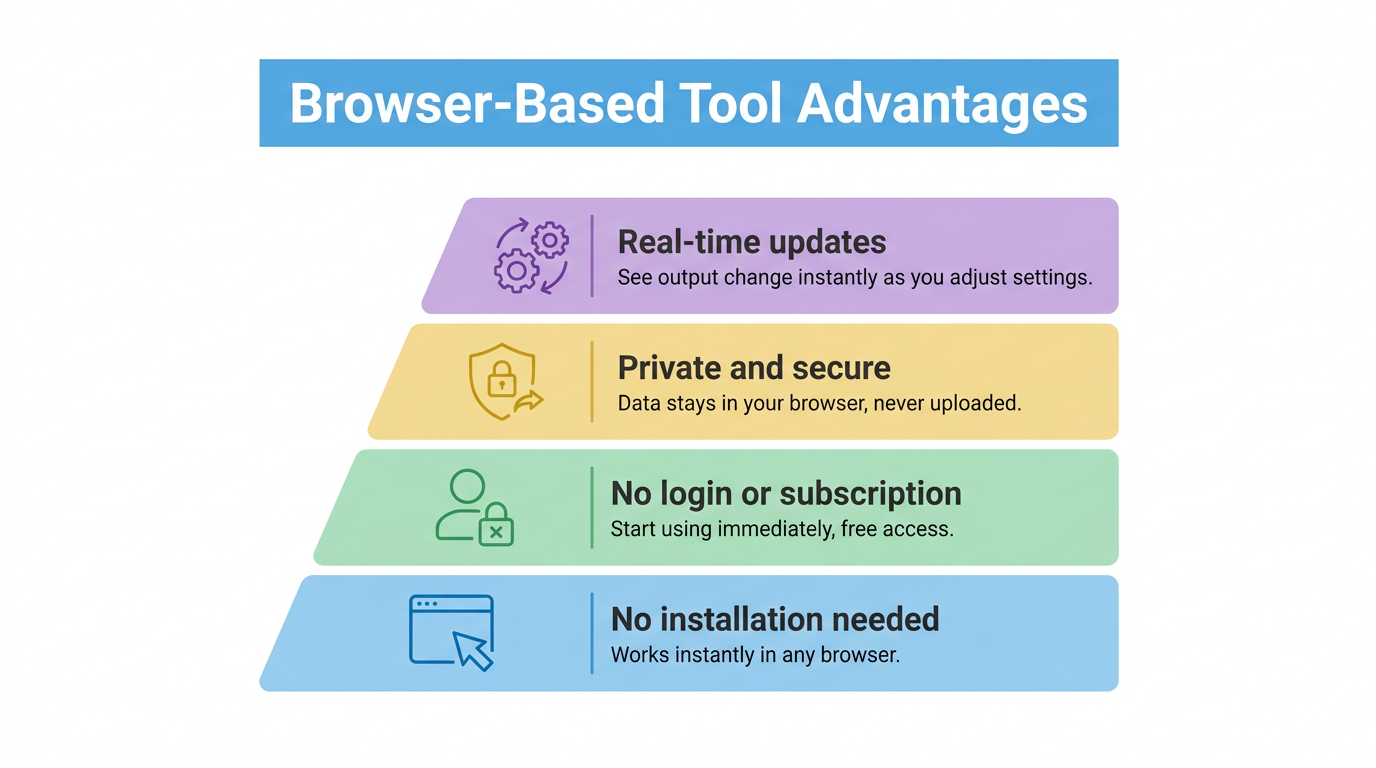
Tools Repository runs its split text tool entirely inside your browser, so nothing you paste in ever leaves your device or gets stored on a server. There’s no login screen, no subscription tier, and no software to install, which matters if you’re switching between tasks all day and don’t want friction slowing you down. The tool responds in real time, showing updated output the moment you change a setting.
Because the platform hosts more than 100 utilities in one place, splitting text is rarely the only stop in your workflow. Once you’ve broken a document into chunks, you might need to join lines back together, convert a CSV file, or check color contrast for a design mockup, and each of those tools sits in the same free hub. That consolidation cuts down on the tab switching that slows most text-heavy workflows.
The takeaway
The right way to split text always depends on the shape of your source material and what you plan to do with the output. Simple, consistent delimiters call for character based splitting, tricky or mixed patterns call for regex, and layout work often calls for fixed length or equal parts division. Whichever method fits, the customization options, separators, wrapping characters, and cleanup settings turn a rough split into output you can paste and use immediately.
Rather than spending an afternoon splitting a document by hand, open a free tool and test a few settings on a small sample first. The platform keeps the process private and instant, with no account needed and no data sent anywhere, so you can experiment freely until the output matches exactly what your project needs.
Frequently asked questions
Can I split text without knowing how to code?
Yes. Character based and equal parts splitting need no coding at all, just a delimiter or a number of chunks. Regular expressions add more power for advanced pattern matching, but they’re entirely optional for everyday splitting tasks.
What’s the difference between a delimiter and a separator in text splitting?
A delimiter marks where the input text gets divided, like a comma or a hyphen. A separator is different, it’s the character placed between chunks in the output, such as a newline, space, or comma you choose after splitting.
Can I split text by sentence or paragraph instead of characters?
Yes, many tools include a sentence or paragraph mode that respects natural language boundaries instead of counting characters. This produces more readable chunks for articles, essays, or scripts, since it avoids cutting a sentence in half partway through.
Is it safe to split sensitive or private text online?
It can be, if you choose a browser based tool. Tools Repository processes text locally in your browser without storing or transmitting it anywhere, so sensitive data never reaches a server, which matters for contracts, personal notes, or client information.
Can I upload a file instead of pasting text to split it?
Yes, many text splitting tools support direct file upload and download, which helps when a document is too long for a simple paste. This avoids clipboard limits and keeps formatting intact, then lets you download the finished, split file directly.
What is the best method for splitting CSV-style data?
Character based splitting using a comma as the delimiter works best for CSV data. Add wrapping characters like quotation marks around each value if you’re importing the result into a database or spreadsheet that expects quoted fields import.