
How to Convert XML to CSV: 4 Easy Methods

Alisha Anjum

You’ve pulled an XML export from an API, a content management system, or an old system log, and now you need that data in a spreadsheet. Opening a tag-heavy XML file in Excel or a database import tool rarely works the way you’d expect, and that mismatch is exactly the problem this guide solves.
XML stores data as nested tags, while spreadsheets and databases expect flat rows and columns, so a straight copy-paste almost always ends in a jumble of angle brackets instead of a clean table. Learning how to convert XML to CSV properly starts with understanding that flattening step before you even open a tool. This guide covers four practical methods, including a free online converter, Microsoft Excel, and a Python script for messy or large files, along with guidance on picking the right one for your data’s structure and sensitivity. Tools Repository, for instance, offers a browser-based converter we’ll use as the fastest starting point.
Whether you’re a developer automating a pipeline, a student finishing an assignment, or a writer sorting through a product feed, one of the methods below fits your situation.
Key takeaways
XML nests data in tags while CSV holds it in flat rows and columns, so conversion means flattening that structure.
Free online converters handle small, non-sensitive files in seconds with no sign-up required.
Microsoft Excel opens many XML files directly and works fully offline with no coding needed.
Python with ElementTree and csv.DictWriter handles messy, large, or automated conversions most reliably.
Data sensitivity should guide your method, so keep private records local instead of uploading them.
Table of Contents
- What’s the difference between XML and CSV?
- How do I convert XML to CSV online for free?
- Can I convert XML to CSV in Excel without any tools?
- How do I convert XML to CSV using Python?
- What if my XML data is sensitive or deeply nested?
- The takeaway
- Frequently asked questions
- Is it safe to convert XML files online?
- Can I convert XML to CSV without losing data if fields are in different order?
- Does Excel support all types of XML files?
- What’s the best tool for converting large XML files to CSV?
- Can I convert CSV back to XML later?
- Do I need to know coding to convert XML to CSV?
What’s the difference between XML and CSV?
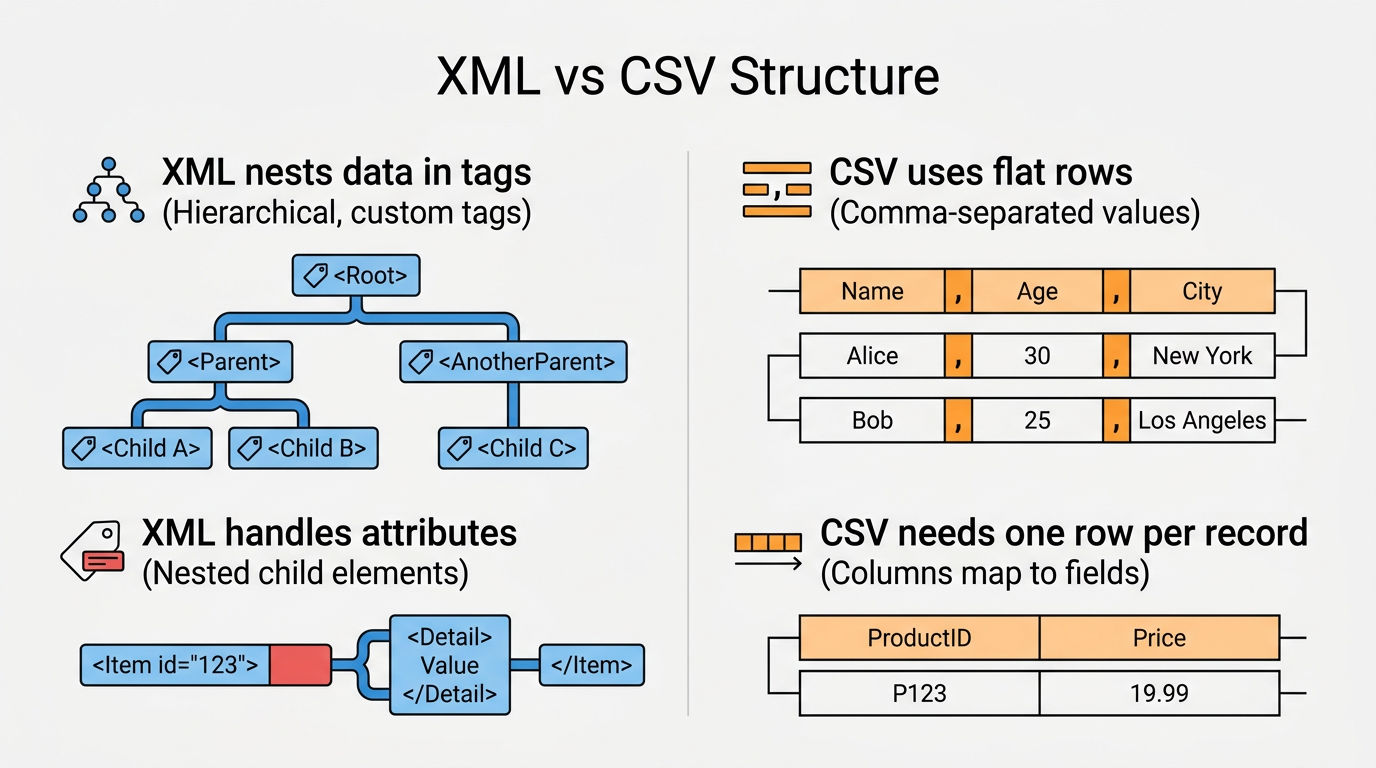
XML and CSV both store structured data, but they organize it in different shapes entirely. XML (eXtensible Markup Language) wraps each piece of data in custom tags that can nest inside one another, so a single record can hold child elements, attributes, and repeated groups several layers deep. CSV (comma-separated values) drops that hierarchy and stores data as flat rows and columns instead, with one line per record and commas separating each field. That simplicity is why CSV opens instantly in Excel, Google Sheets, and almost any database.
Converting one format into the other means flattening XML’s tree into CSV’s table and deciding which tag becomes which column. This is simple for a repeating list of similar records, but it gets trickier once tags go missing, appear out of order, or nest several layers deep inside a document.
How do I convert XML to CSV online for free?
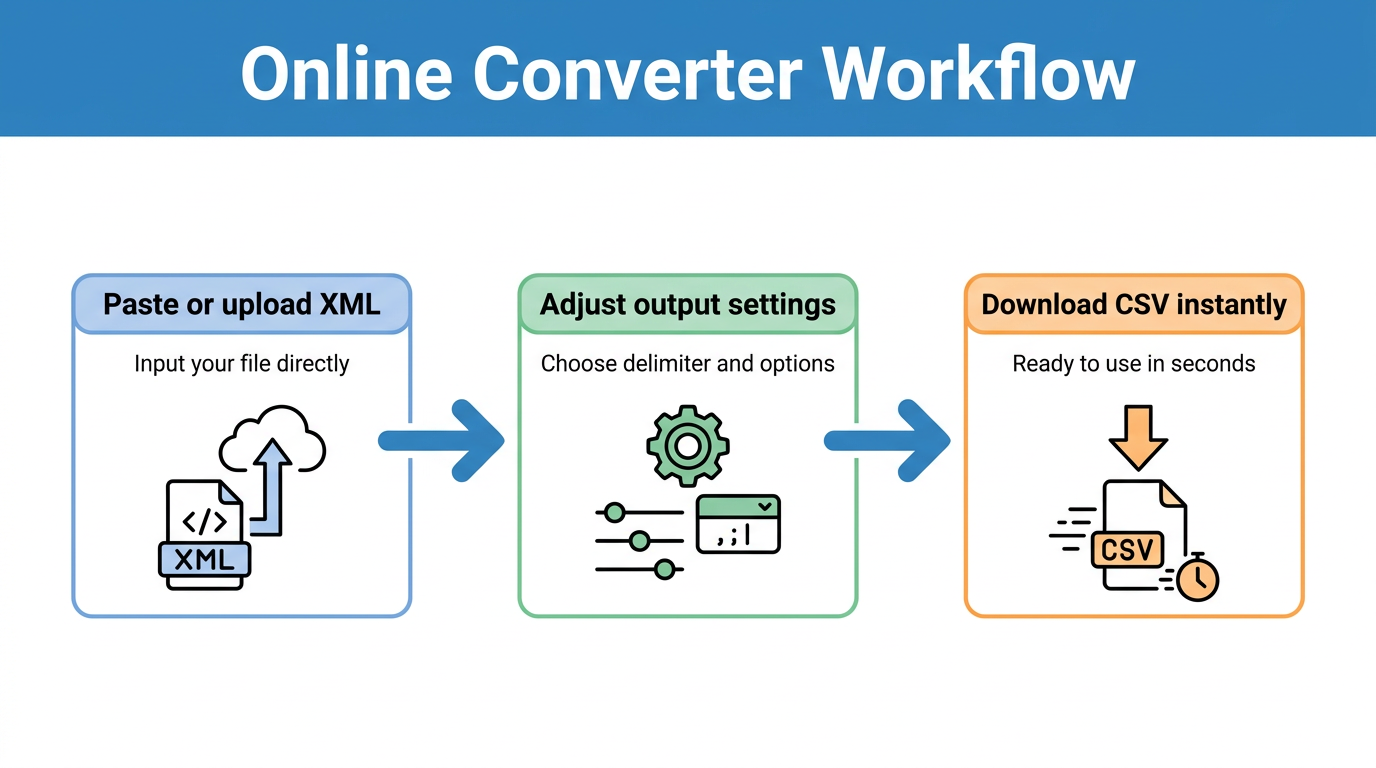
Converting XML to CSV online is the fastest route when you have a small, non-sensitive file and no interest in writing code. Most browser-based converters follow the same three-step flow, and the Tools Repository XML to CSV converter works exactly this way, running entirely inside your browser tab. You paste or upload your XML, adjust a couple of output settings, and download a ready-made CSV file within seconds, without installing anything or creating an account. This approach works best for record-oriented XML, meaning a repeating parent tag with a consistent set of child elements that maps cleanly onto rows and columns, similar to how a dedicated XML to CSV component handles configuration options like header inclusion in automated pipelines.
Paste your XML text into the input box or upload the file directly from your computer, however it was originally exported.
Set your output options by choosing a delimiter such as comma, tab, or semicolon, deciding whether to include a header row, and picking whether to force quotes around every field.
Click convert, and the tool produces a clean, ready-to-open CSV or Excel file in seconds.
Why choose a browser-based tool like this
This kind of tool processes your XML entirely inside the browser tab, so the file never touches an external server. That distinction matters if you’re handling client data, personal records, or anything covered by a protect your privacy online, since nothing you paste in ever leaves your machine. Because the conversion runs client-side, you get the same speed as a server-based tool without the data-handling risk that comes with uploading files to a third party.
The platform also skips sign-ups, subscriptions, and locked “pro” features, functioning as one of over 100 free utilities built for boost your workflow. That makes it a solid fit for freelancers, students, writers, and designers who need a one-off conversion finished in the next two minutes, not a new tool to learn or pay for.
Can I convert XML to CSV in Excel without any tools?
Microsoft Excel can open many XML files directly, without any coding or online upload, which makes it a strong offline option when privacy is a concern or you simply don’t want another browser tab. Choose File then Open, select your XML file, and Excel will attempt to detect repeating elements automatically and map them into a table. Once the data loads correctly, save it straight to CSV using the Save As command and picking CSV from the file type dropdown.
This method works best on simple, consistent XML, and it can behave unpredictably with deeply nested tags, mixed attributes, or namespace-heavy documents. Always scroll through the imported table and check a few rows against the original file before trusting the output for anything important.
How do I convert XML to CSV using Python?
Converting XML to CSV with Python gives you full control over messy or irregular files that trip up simpler tools. The process relies on two built-in libraries, xml.etree.ElementTree for parsing and csv for writing, so nothing extra needs installing, a pattern echoed in dedicated command-line utilities such as a command-line XML converter tool built specifically for this kind of batch transformation. You parse the file with ET.parse(), loop through each record with root.findall(), and pull out the values you need. For a Java-based alternative to the Python approach, a step-by-step XML file conversion guide walks through similar parsing and flattening logic using the Stream API. The examples below start with a basic version, then move to a pattern that handles tags missing from some records.
Basic Python script for XML to CSV
Here’s a minimal script you can adapt for a simple, record-oriented XML file. It parses the document, loops through each repeating item tag, and writes the results to a new CSV file with a header row on top.
import csvimport xml.etree.ElementTree as ET

tree = ET.parse('input.xml')root = tree.getroot()

with open('output.csv', 'w', newline='') as f:
    writer = csv.writer(f)
    writer.writerow(['Name', 'Status', 'Total'])
    for item in root.findall('item'):
        name = item.find('Name').text
        status = item.find('Status').text
        total = item.find('Total').text
        writer.writerow([name, status, total])
Swap “item” and the child tag names for whatever your own XML uses, since every schema names its elements differently. If a value sits inside an attribute rather than element text, use item.get('attributeName') in place of .find().text.
Handling missing tags and messy XML
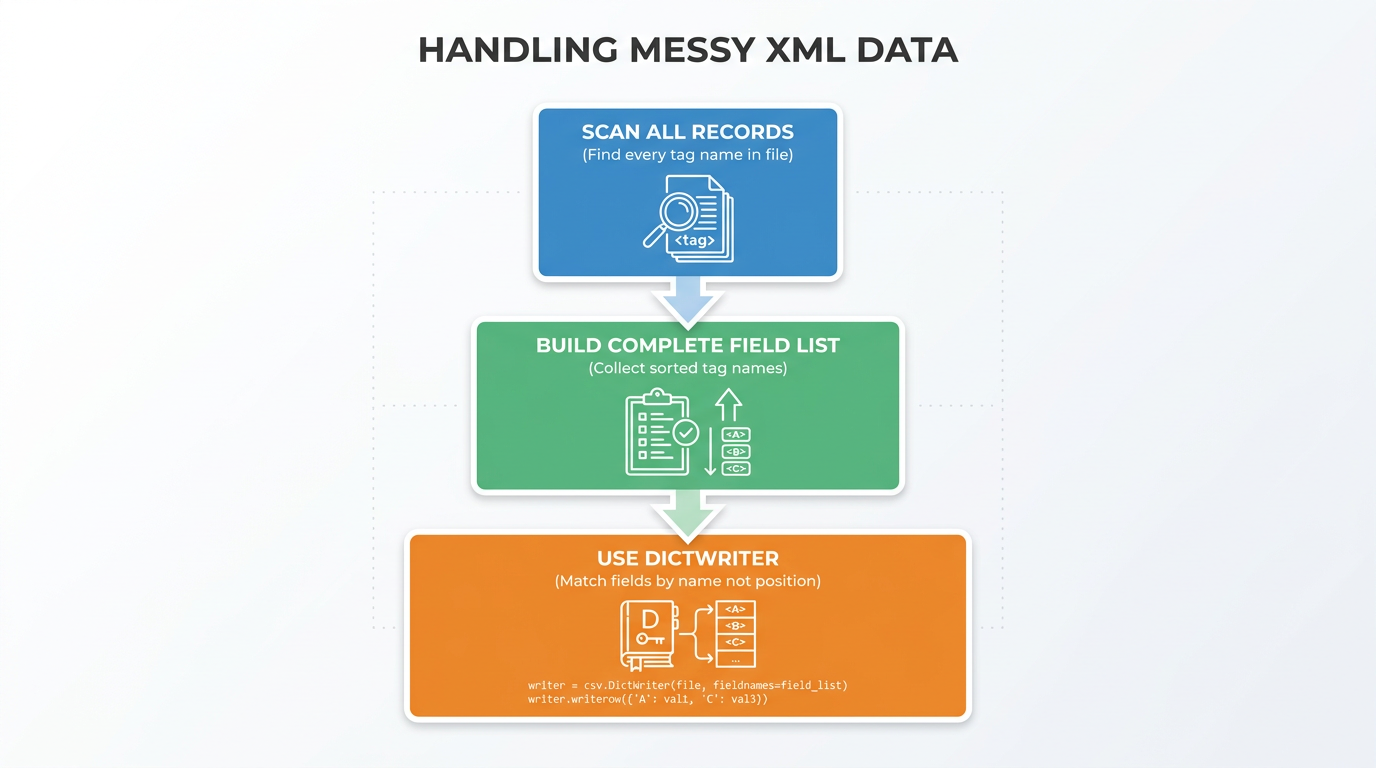
Real XML exports rarely stay perfectly uniform, and a script that assumes every record has the same tags in the same order will crash or misalign columns the moment one is missing. The fix is to scan every record first and build a complete, sorted list of every tag name that appears anywhere in the file, not just the first one you happen to check.
Once you have that full list, switch from a plain csv.writer to csv.DictWriter and pass it your collected field names. DictWriter writes each row by matching field names rather than position, so if a tag is missing from one record, it simply leaves that cell blank instead of shifting every value after it out of place.
What if my XML data is sensitive or deeply nested?
If your XML file contains personal information, health records, financial data, or anything covered by a confidentiality agreement, skip public online converters entirely and process the file locally instead. Excel’s built-in XML import or a Python script running on your own machine keeps the data on your hard drive the whole time, which matters far more than convenience when regulated information is involved.
Deeply nested or relational XML brings a different problem, since a single flat CSV can’t represent multiple related record types without repeating values excessively or losing the relationships between them. In these cases, it often makes more sense to split the data into several related CSV files, each covering one level of the hierarchy and linked by an ID column, similar to how a small relational database is structured.
The takeaway
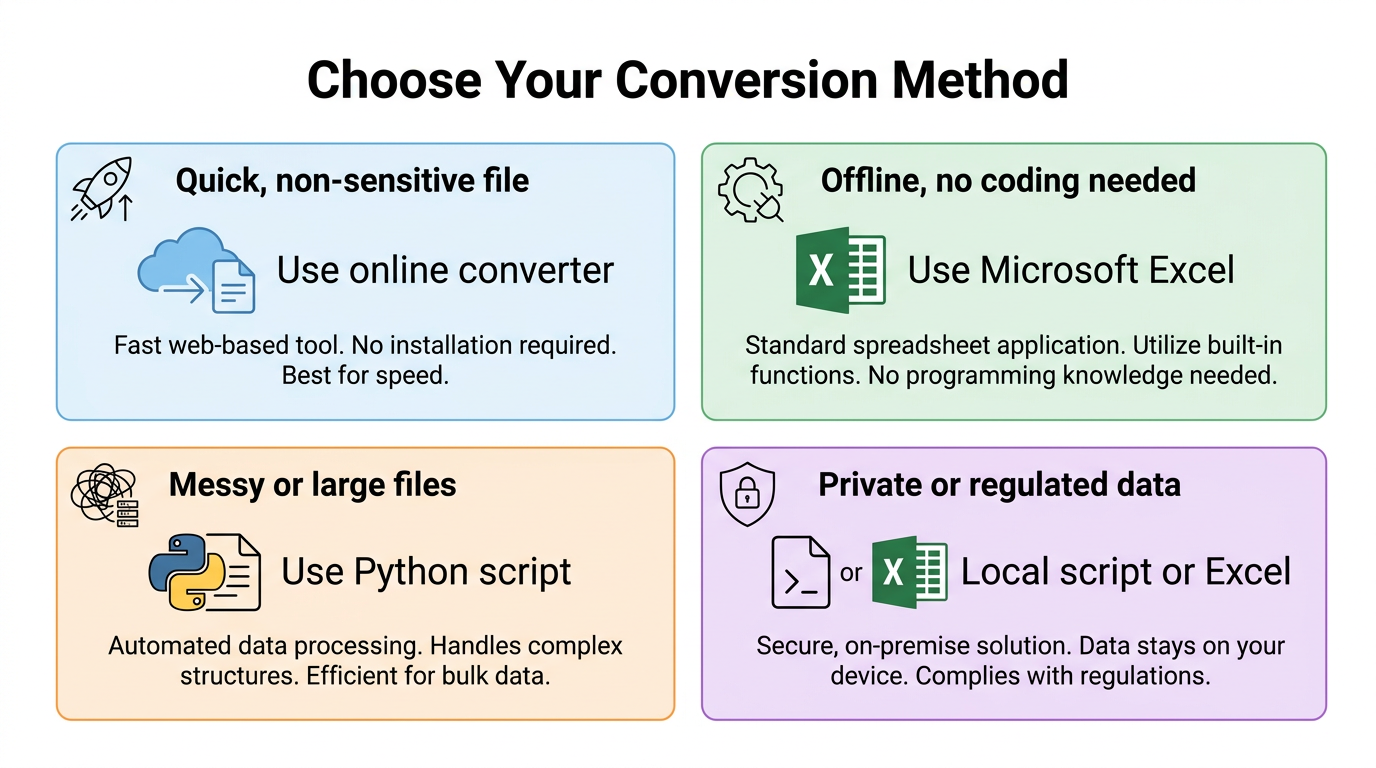
Picking the right way to convert XML to CSV comes down to three questions. How consistent is your XML’s structure, how sensitive is the data inside it, and will you need to repeat the job later? Online converters win on speed for a quick, one-off file, Excel suits an offline, no-code workflow you already know, and Python earns its place the moment tags go missing, files get large, or the job needs repeating.
| Situation | Best method |
|---|---|
| Quick, non-sensitive file | Online converter |
| No coding, offline work | Microsoft Excel |
| Messy, large, or repeat jobs | Python script |
| Private or regulated data | Local script or Excel |
Give the Tools Repository free converter a try for your next small file. It takes seconds, skips the sign-up, and keeps your data off any server, so you can convert XML to CSV without a second thought about where the file ends up.
Frequently asked questions
Is it safe to convert XML files online?
Safety depends on the tool. Some online converters upload your file to a server for processing, which isn’t ideal for sensitive data. Browser-based tools like Tools Repository process everything locally in your browser and never send your file anywhere.
Can I convert XML to CSV without losing data if fields are in different order?
Yes, if you use a real parser instead of regex or find-and-replace. Tools like ElementTree, Excel’s XML import, and most online converters match values to their tag names directly, so field order never causes a misalignment.
Does Excel support all types of XML files?
Not entirely. Excel handles simple, consistent XML well and auto-detects repeating elements into a table, but it can struggle with deeply nested or namespace-heavy files, so always check the results before relying on them.
What’s the best tool for converting large XML files to CSV?
Python is strongest for large files, especially using ET.iterparse() to process elements one at a time instead of loading everything into memory. Most online converters cap file size, so scripting works better once files reach several megabytes.
Can I convert CSV back to XML later?
Yes, the reverse conversion is common. Many tools that convert XML to CSV also offer CSV to XML, and a Python script can rebuild tags from column headers just as easily as it extracted them in the first place.
Do I need to know coding to convert XML to CSV?
No, coding is optional. Options like a browser-based online converter or Excel’s XML import handle the whole process without programming knowledge. Coding becomes useful mainly for messy data or conversions you need to repeat often.